

Technical Root Cause & Diagnostics
A mouse that registers two clicks when you press the button once is often suffering from a worn or contaminated microswitch rather than a Windows setting. Inside the mouse, the button presses a small mechanical switch. Over time, the switch’s internal contact mechanism can wear, oxidize, or lose its original spring tension, causing one physical press to generate multiple electrical signals.
Software settings can sometimes make clicking behavior appear unusual, but genuine random double-clicking across different applications is usually a hardware problem. I first confirm that before opening the mouse.
Common symptoms include:
- One click opens files as though they were double-clicked.
- Selecting text becomes difficult because a single press releases and clicks again.
- Dragging an item starts and immediately ends.
- The problem occurs in Windows and other applications.
- Clicking slowly still occasionally produces two clicks.
- The issue affects one button much more than the others.
Pre-Flight Sanity Checks (Rule Out the Basics)
1. Test the mouse on another computer
Connect the mouse to another Windows computer and perform repeated single clicks.
If the same button double-clicks there, the problem is almost certainly inside the mouse rather than your Windows configuration.
2. Check Windows double-click sensitivity
Open:
Settings → Bluetooth & devices → Mouse → Additional mouse settings
In the Buttons tab, locate Double-click speed.
Move the slider toward a slower setting and test the button.
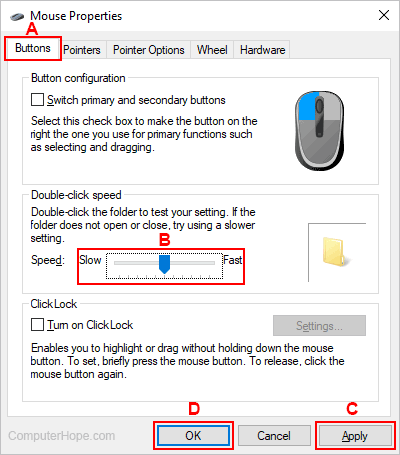
This is only a diagnostic step. Changing double-click speed cannot repair a defective microswitch.
3. Test the button mechanically
Click the affected button slowly 20–30 times.
Pay attention to whether the problem is random.
A switch that works correctly for several presses and then produces two clicks is particularly suspicious for contact bounce or a worn microswitch.
Method 1: Clean the Button Area Before Opening the Mouse
Before performing the hardware hack, remove contamination around the button.
Disconnect the mouse.
If it is wireless, switch it off and remove the battery where practical.
Use compressed air around the affected button while repeatedly pressing it.
Keep the compressed-air can upright and use short bursts.

If external debris is contributing to the problem, this may improve the switch without requiring disassembly.
Do not spray household cleaner, lubricant, or WD-40 into the button opening.
Verification: Reconnect the mouse and perform at least 30 individual clicks in a text editor, browser, or desktop environment to confirm whether unwanted double-clicks still occur.
Technical Note: If the mouse continues double-clicking on another computer after external cleaning, stop spending time on Windows settings and move to the physical switch.
Method 2: Open the Mouse and Clean the Microswitch
If the mouse is out of warranty and you are comfortable opening it, inspect the switch itself.
Remove the mouse’s screws. They may be located underneath the mouse feet, labels, or other covers depending on the design.
Separate the shell carefully because some mice have internal cables connecting the upper shell to the main PCB.
Locate the microswitch directly underneath the problematic button.
Common mechanical switches are small rectangular components with a plastic actuator on top.
First inspect for:
- Dust
- Hair
- Liquid residue
- Corrosion
- Broken plastic
- A visibly damaged actuator
If contamination is visible around the switch, use a small amount of high-purity isopropyl alcohol on an appropriate applicator and work the button repeatedly.
Do not flood the PCB or switch.
Allow everything to dry completely before reconnecting the mouse.
Verification: After the alcohol has fully evaporated, reconnect the mouse and test 50–100 individual clicks, checking whether a single physical press consistently produces only one click.
Warning: Do not power the mouse while liquid is still present. Do not spray alcohol directly onto the PCB or switch.
Method 3: Carefully Restore Microswitch Contact Tension — the Hardware Hack
If cleaning does not solve the problem, the microswitch’s internal contact mechanism may be worn.
A common temporary repair involves opening the microswitch and carefully adjusting its internal metal spring/contact.
This requires considerably more care than cleaning.
First disconnect the mouse and remove the PCB if necessary to access the switch safely.
The microswitch usually has a plastic cover held by small clips.

Carefully release the switch cover using a small precision tool.
Inside, you will find a tiny metal spring/contact mechanism. The exact design varies between switch manufacturers.
The objective is not to aggressively bend the metal.
Instead, inspect the contact mechanism for obvious deformation or contamination. If the contact spring has visibly lost tension, a very small adjustment can sometimes restore reliable contact.
Work slowly because the internal metal component is extremely small and can easily deform.
If you remove the contact mechanism, photograph its orientation before moving it so you know how it was positioned.
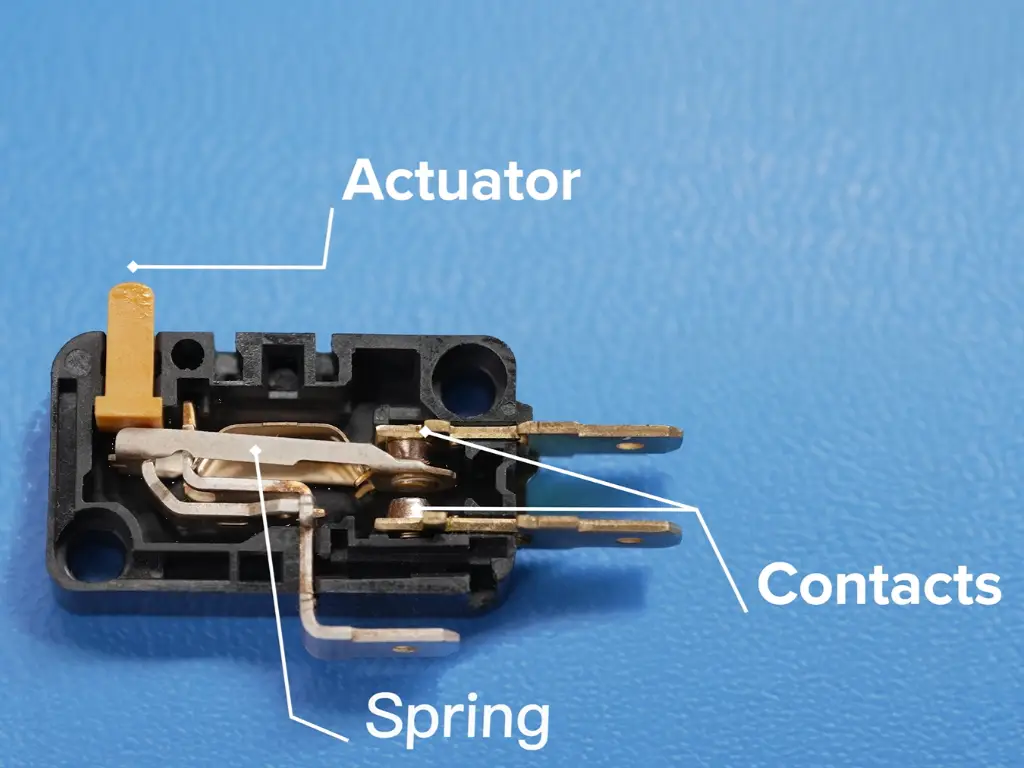
Clean visible oxidation or contamination carefully with a suitable high-purity electrical-contact cleaning method if compatible with the switch. Avoid leaving oily residue on the contact surfaces.
Reassemble the switch exactly as it was.
The goal is to restore a clean, positive mechanical contact—not to increase the force required to click the mouse.
Verification: Test the repaired switch with several hundred individual clicks and confirm that the mouse no longer produces unintended double-clicks while the button still activates with normal force.
Warning: This is a temporary repair, not a guaranteed permanent fix. The internal contact may be physically worn, and excessive bending can make the switch unreliable or permanently damage it.
Long-Term Prevention & Configuration Lock
1. Replace the microswitch when reliability matters.
If the mouse is valuable and you have soldering equipment and experience, replacing the defective microswitch is generally a more dependable repair than repeatedly bending an aging contact.
2. Keep liquids and food away from the mouse.
Sugar and other residues can migrate into the microswitch and accelerate contact problems.
3. Do not use lubricants as a cure for electrical contact problems.
Mechanical lubrication and electrical contact cleaning are different jobs. Adding an oily product to a microswitch can create another problem rather than fixing the double-click fault.
Advanced Edge-Case FAQ
1. Why does changing Windows double-click speed sometimes appear to fix the problem?
Windows determines whether two click events are close enough together to be interpreted as a double-click. Increasing the required interval can make some accidental double-clicks less noticeable.
However, it does not repair the mouse switch.
If the switch is producing two electrical click events from one physical press, the underlying hardware problem remains. Test the mouse on another computer to distinguish Windows configuration from a defective switch.
2. Should I bend the metal contact inside every double-clicking mouse switch?
No. The internal construction differs between switch models, and aggressively bending the contact can make the switch worse.
The adjustment should be extremely small and is best regarded as a temporary repair. If the switch is heavily worn, replacing it is the proper hardware solution.
If the mouse is inexpensive and the switch is soldered directly to the PCB, replacing the entire mouse may also be more practical than performing a delicate microswitch repair.
3. How can I tell whether I should clean, repair, or replace the switch?
Use the behavior as a guide:
- Works after external cleaning: contamination was likely involved.
- Improves after internal cleaning: residue or oxidation may have affected the contacts.
- Temporarily improves after contact adjustment: mechanical wear is likely.
- Immediately returns to double-clicking: the switch is probably worn.
- Switch feels physically damaged: replacement is preferable.
- Multiple buttons behave strangely after a spill: inspect the PCB and surrounding circuitry rather than repairing only one switch.
For a frequently used mouse, microswitch replacement is the more reliable long-term repair than repeatedly modifying the original contact.