
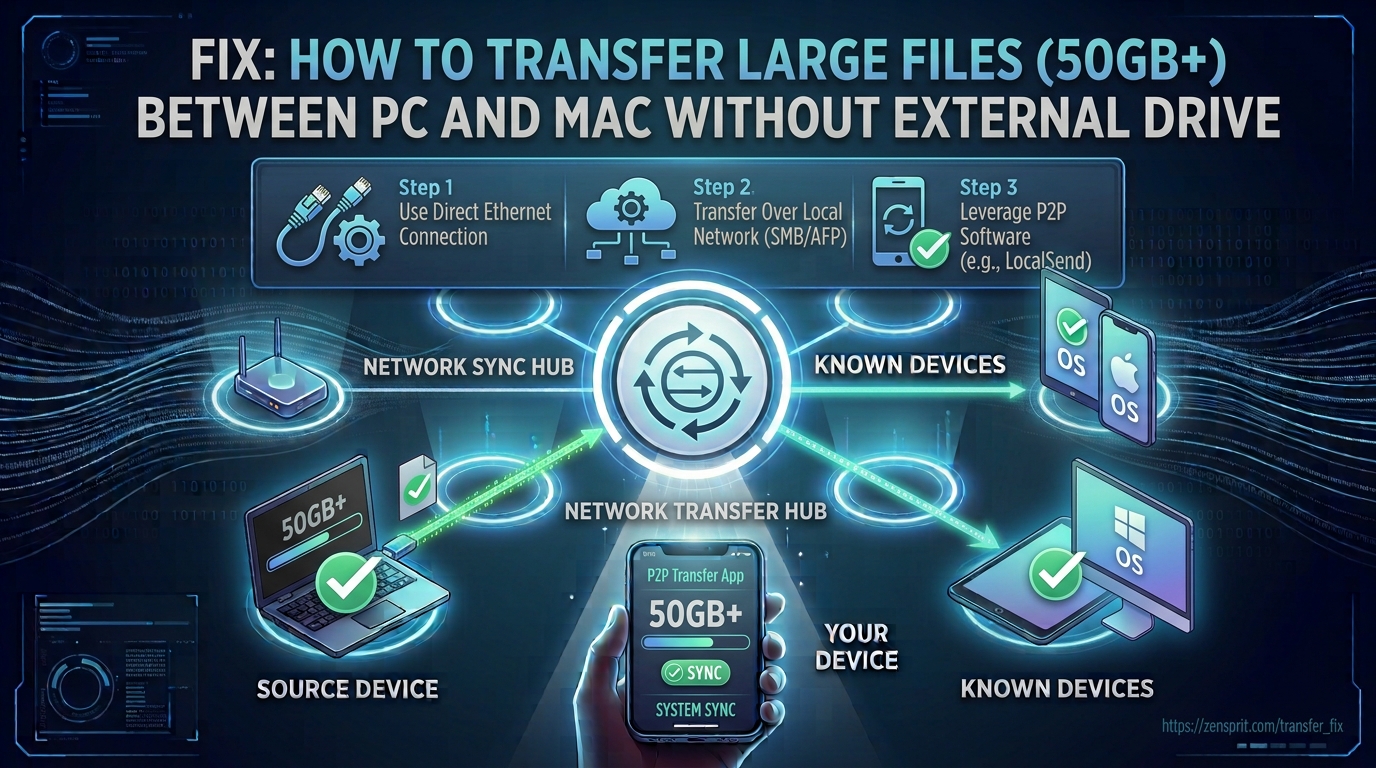
Technical Root Cause & Diagnostics
Moving a 50GB or larger file between a Windows PC and a Mac does not require an external drive, but the transfer method matters. The most reliable local approach is SMB network file sharing, because both Windows and macOS can communicate using the protocol without requiring the computers to use the same filesystem. The biggest failures usually come from network instability, Windows sharing permissions, macOS SMB authentication, firewall rules, or a Wi-Fi connection that cannot sustain a large transfer.
Filesystem compatibility becomes important when people try to solve the problem with removable storage. NTFS, APFS, and exFAT have different read/write support across Windows and macOS. A network transfer avoids that problem because the file remains on its original filesystem while the destination computer receives it through SMB.
Typical symptoms include:
- A 50GB+ transfer starts normally and fails partway through.
- Windows cannot see the Mac on the network.
- The Mac appears in Finder but the shared folder cannot be opened.
- macOS repeatedly asks for Windows credentials.
- The transfer speed drops dramatically after several minutes.
- A file copies successfully but has a different size on the destination.
- Windows reports that the network path is unavailable.
- macOS displays There was a problem connecting to the server.
- The transfer stops when the laptop enters Sleep.
- Wi-Fi disconnects during a long transfer.
Pre-Flight Sanity Checks (Rule Out the Basics)
1. Put both computers on the same local network.
Connect both systems to the same router. For a 50GB+ transfer, I prefer Ethernet wherever possible. If Wi-Fi must be used, connect both computers to the same 5GHz or 6GHz network rather than mixing one device on 2.4GHz and the other on a different wireless network.
Do not use a guest Wi-Fi network because client isolation may prevent the computers from communicating.
2. Confirm the destination has enough free space.
On Windows, open Settings > System > Storage.
On macOS, open Apple menu > System Settings > General > Storage.
Leave additional free space beyond the file size. A destination with only a few hundred megabytes of free space remaining can fail during a large copy even when the displayed available capacity initially appears sufficient.
3. Prevent either computer from sleeping during the transfer.
A 50GB transfer can take considerably longer than a normal document copy. Temporarily configure both systems so that they remain awake while connected to power.
Keep the computers connected to AC power throughout the transfer.
Method 1: Share the Windows Folder With SMB and Copy From the Mac
For a Windows PC and Mac on the same LAN, I normally start with SMB file sharing from Windows to macOS because it requires no third-party transfer application.
On Windows 11, locate the folder containing the large file.
Right-click the folder and select:
Show more options > Give access to > Specific people
Depending on the Windows configuration, use the network-sharing dialog to select the Windows account that should have access.
For a dedicated transfer, create a simple folder such as:
C:\MacTransfer
and place the large files inside it rather than sharing the entire Windows drive.
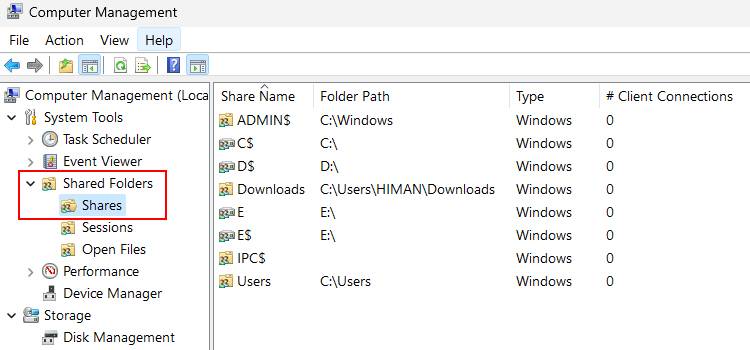
Next open Settings > Network & internet and identify the PC’s local IPv4 address.
You can also open Command Prompt and run:
ipconfig
Look under the active Ethernet or Wi-Fi adapter for IPv4 Address.
On the Mac, open Finder.
Select:
Go > Connect to Server
Enter the Windows SMB address using this format:
smb://WINDOWS-IP-ADDRESS/MacTransfer
For example, if the Windows PC’s local address is 192.168.1.25, the path would use that address followed by the shared folder name.

Select Connect.
When macOS requests authentication, enter the Windows account credentials that have permission to access the shared folder.
Once the shared folder mounts in Finder, drag the large file from the Windows share to a local folder on the Mac.
For the first test, copy one large file rather than an entire directory containing hundreds of files.
Verification: After the copy completes, compare the source and destination file sizes and open the transferred file on the Mac; a successful transfer should produce the same file without Finder reporting a network interruption.
Technical Note: Do not use the Windows PC’s public IP address for this local transfer. The
smb://address should point to the PC’s local network address. If the IP changes frequently, use the computer’s hostname or configure a DHCP reservation on the router.
Method 2: Share the Mac Folder With Windows Using SMB
The reverse direction works just as well when the source file is on the Mac.
On macOS, open:
Apple menu > System Settings > General > Sharing
Enable:
File Sharing
Select the info button next to File Sharing and add the folder containing the large file under Shared Folders.
Then open the user permissions section and make sure the appropriate account has read access, or read/write access if Windows needs to upload files to the Mac.
macOS should display information showing the network address for the shared folder.
On the Windows PC, press:
Win + R
Enter the Mac’s network path using the appropriate SMB address, for example:
\\MAC-IP-ADDRESS\SharedFolder
Press Enter.
When Windows asks for credentials, use the Mac account authorized for file sharing.
The Mac share should appear in File Explorer. Copy the 50GB+ file from the network location to the desired Windows folder.
For large transfers, avoid simultaneously streaming video, downloading large files, or running a cloud synchronization job on either computer.
Verification: After the transfer finishes, right-click the Windows copy, select Properties, and compare its size with the original file on the Mac; then open the file to confirm that it is readable and complete.
Method 3: Use a Direct Ethernet Connection for a More Stable 50GB+ Transfer
If Wi-Fi is unstable or the transfer speed fluctuates heavily, use Ethernet instead of trying increasingly complicated software solutions.
Connect the PC and Mac to the same Gigabit Ethernet switch or router using Ethernet cables.
If both devices have Ethernet ports or compatible USB-C/Thunderbolt Ethernet adapters, verify that the connection is actually negotiating at Gigabit or faster speed.
On Windows, open:
Settings > Network & internet > Ethernet
and verify that Ethernet is connected.
On macOS, open:
System Settings > Network > Ethernet
and confirm the interface is active.
Then use the same SMB procedure from Method 1 or Method 2.
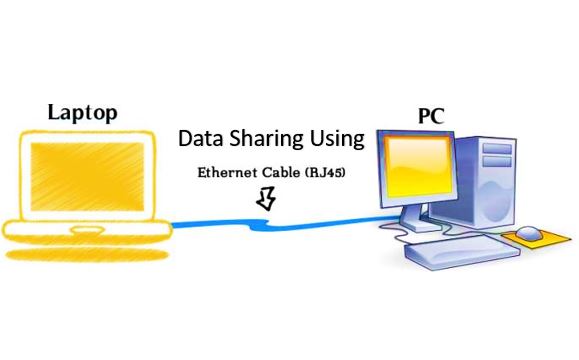
For a 50GB file, Ethernet has another advantage: it reduces the probability of a brief wireless interruption terminating the transfer.
If both computers support faster Ethernet and the network equipment supports it, a 2.5GbE connection can reduce transfer time substantially compared with a 1GbE connection.
Do not judge the connection only by the link speed shown by the adapter. The actual transfer rate is also limited by the source storage, destination storage, network equipment, SMB overhead, and file characteristics.
Verification: Copy the same large file over Ethernet and monitor the transfer for several minutes; a successful configuration should maintain a substantially steadier transfer rate without disconnecting or repeatedly restarting the copy.
Long-Term Prevention & Configuration Lock
1. Use wired Ethernet for critical multi-hour transfers.
Wi-Fi is convenient, but a long transfer has more opportunities for interference, roaming, power management, or temporary connection loss. Ethernet removes many of those variables.
2. Keep Sleep from interrupting large transfers.
Before starting a transfer involving tens or hundreds of gigabytes, connect both computers to power and temporarily prevent automatic Sleep. Restore your normal power settings after the transfer.
3. Keep one dedicated transfer share.
Instead of repeatedly sharing random folders, maintain a dedicated Windows or macOS folder for temporary PC-to-Mac transfers. This simplifies permissions and reduces the chance of accidentally exposing unrelated files over the local network.
Advanced Edge-Case FAQ
Why does a 50GB file fail even though smaller files transfer perfectly?
A small file can complete before a network or power-management problem becomes visible. A 50GB transfer keeps the network connection, storage devices, SMB session, and computers active for much longer. Check Sleep settings first, then test the same transfer over Ethernet. If Ethernet succeeds while Wi-Fi repeatedly fails, the problem is likely network stability rather than the file itself.
Can I transfer a 50GB file directly between Windows and Mac without formatting either computer’s drive?
Yes. SMB networking avoids the filesystem compatibility issue because the source computer reads the file using its native filesystem and sends the data over the network. The destination writes that data using its own filesystem. You therefore do not need to format the Mac’s APFS storage or the Windows PC’s NTFS storage just to move the file.
Why does my Mac connect to the Windows share but refuse to copy the large file?
First verify that the Windows account has permission to read the source file and that the destination Mac has sufficient free storage. Then test with another large file. If smaller files work but the 50GB file fails consistently, check the Windows filesystem and the actual file size, then repeat the transfer over Ethernet. Also make sure no security software, VPN, network filter, or third-party endpoint protection is terminating the SMB connection during long transfers.