
Target environment: OBS Studio on Windows 10/11 laptop with integrated and/or dedicated graphics
OBS Studio showing a black preview during screen capture on a laptop is usually caused by OBS and the Windows desktop running on different GPUs. Other common causes include selecting the wrong capture source, graphics-driver problems, protected application content, or incorrect permissions.
The important point is that OBS itself may be running normally while the capture source is receiving no usable frames. I troubleshoot this by first identifying which GPU OBS is using, then testing Display Capture independently from Game Capture before changing drivers or reinstalling OBS.
Technical Root Cause & Diagnostics
Many laptops have two graphics processors: an integrated GPU built into the processor and a dedicated NVIDIA or AMD GPU. Windows can assign OBS to one GPU while the desktop or application being captured is rendered by another. Depending on the capture method and Windows configuration, this can result in a completely black OBS preview.
A second common problem is using Game Capture when the goal is to capture the Windows desktop, File Explorer, or a normal application. Game Capture is designed for supported applications and games, while Display Capture is intended for the desktop itself.
Common symptoms include:
- OBS preview is completely black.
- Audio capture works but video is missing.
- Display Capture shows a black rectangle.
- Game Capture works for one application but not another.
- OBS captures the cursor but not the desktop.
- The problem started after a Windows or graphics-driver update.
- Laptop screen capture works on battery but not when connected to another display.
- OBS works with one monitor but produces a black screen on another.
Pre-Flight Sanity Checks (Rule Out the Basics)
1. Confirm the capture source type
In OBS, look at:
Sources
If you are trying to record the entire Windows desktop, use:
Display Capture
If you are trying to record a supported game or application, use:
Game Capture
Do not use Game Capture simply because it sounds more powerful.
2. Test the desktop without the target application
Close the application you originally wanted to record.
Add a new:
Sources → + → Display Capture
Select the laptop’s built-in display.
If the desktop appears normally, the GPU pipeline is probably working and the issue may be specific to the application you were attempting to capture.
3. Check whether Windows detects both GPUs
Open:
Settings → System → Display → Advanced display
Then open:
Settings → System → Display → Graphics
Look for OBS Studio in the application list.
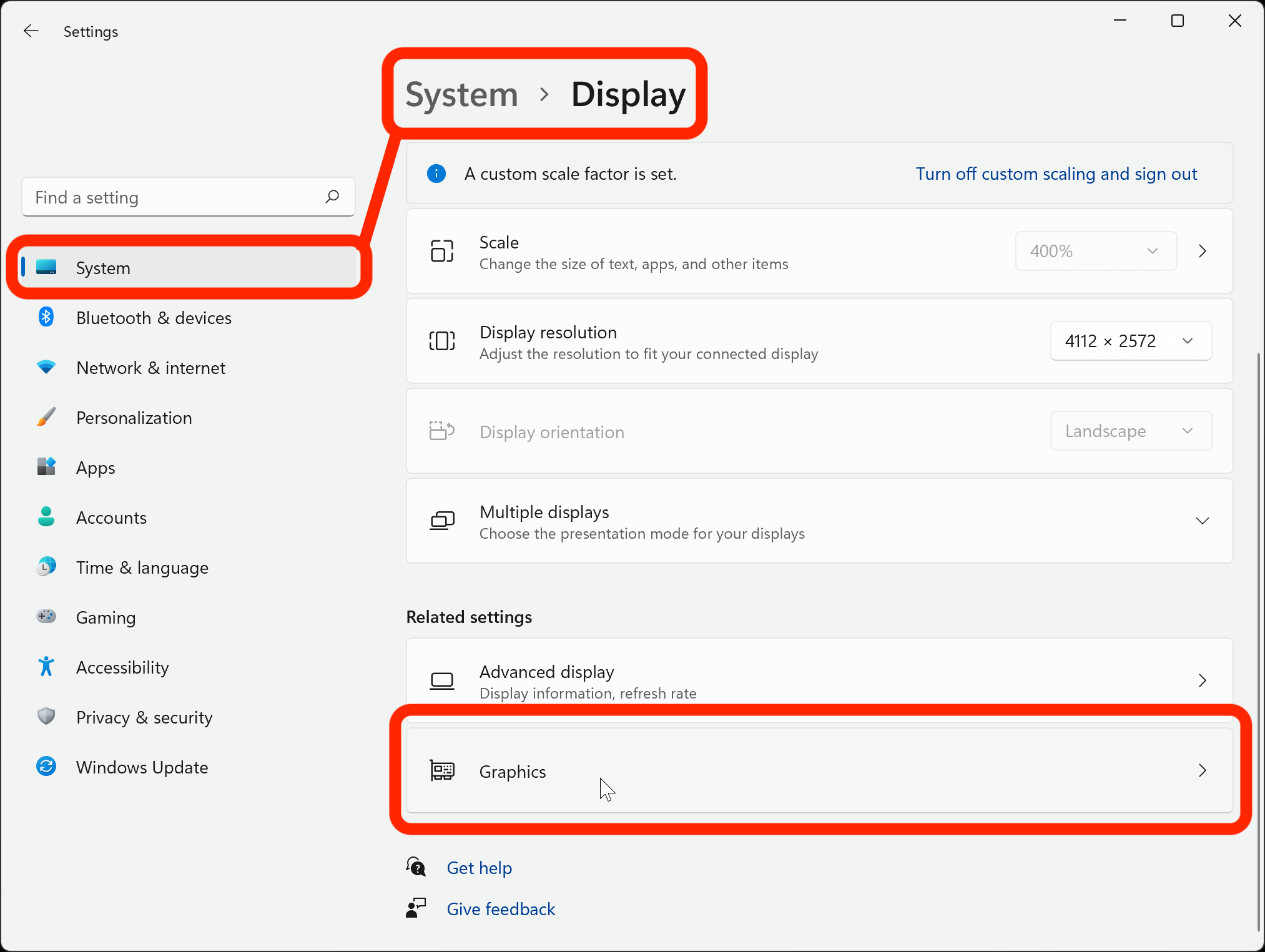
Verification: OBS should display the Windows desktop when using a fresh Display Capture source before you troubleshoot individual games or applications.
Method 1: Assign OBS to the Correct GPU in Windows Graphics Settings
On a laptop with integrated and dedicated graphics, this is the first major fix to try.
Open:
Settings → System → Display → Graphics
Under Custom options for apps, locate OBS Studio.
If it is not listed, select:
Add an app → Desktop app → Browse
Locate the OBS executable, normally installed under a path similar to:
C:\Program Files\obs-studio\bin\64bit\obs64.exe
The exact installation path can differ if OBS was installed somewhere else.
Click OBS Studio in the list and select:
Options
Windows may provide GPU choices such as:
- Let Windows decide
- Power saving
- High performance
For a laptop with two GPUs, test the setting that matches the capture method.
For example, if OBS is capturing the desktop rendered by the integrated GPU, running OBS on the dedicated GPU can create a mismatch in some configurations. Conversely, certain Game Capture configurations work better when OBS and the game use the same high-performance GPU.
Therefore, do not assume High performance is always the correct answer.
Test the available GPU assignments one at a time.
After changing the setting, completely close OBS and start it again.
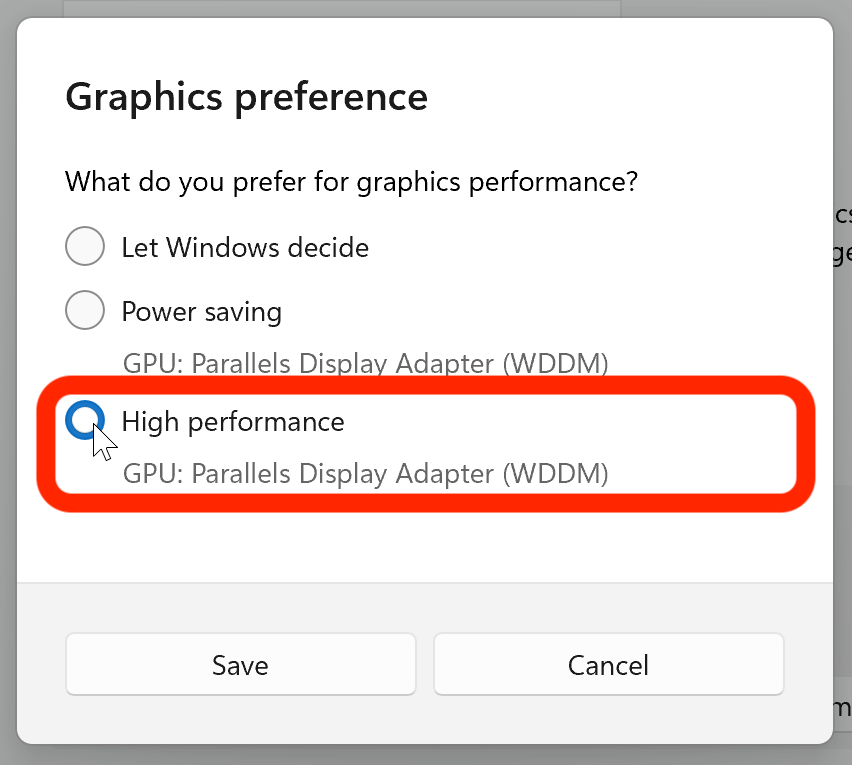
Verification: After restarting OBS, Display Capture should show the laptop desktop without a black preview.
Technical Note: On hybrid-GPU laptops, the correct GPU assignment can differ between Display Capture and Game Capture. A setting that fixes desktop capture may not be optimal for a particular game.
Method 2: Recreate the Display Capture Source and Test Windows Capture Compatibility
If the GPU assignment is correct but OBS still displays black video, remove the existing capture source and create a fresh one.
In OBS:
Sources → select Display Capture → Remove
Then choose:
Sources → + → Display Capture
Give the source a clear name such as:
Laptop Display
Select the correct display from the configuration window.
If OBS presents multiple capture methods or compatibility options, test the available method rather than assuming the default is appropriate for every Windows configuration.
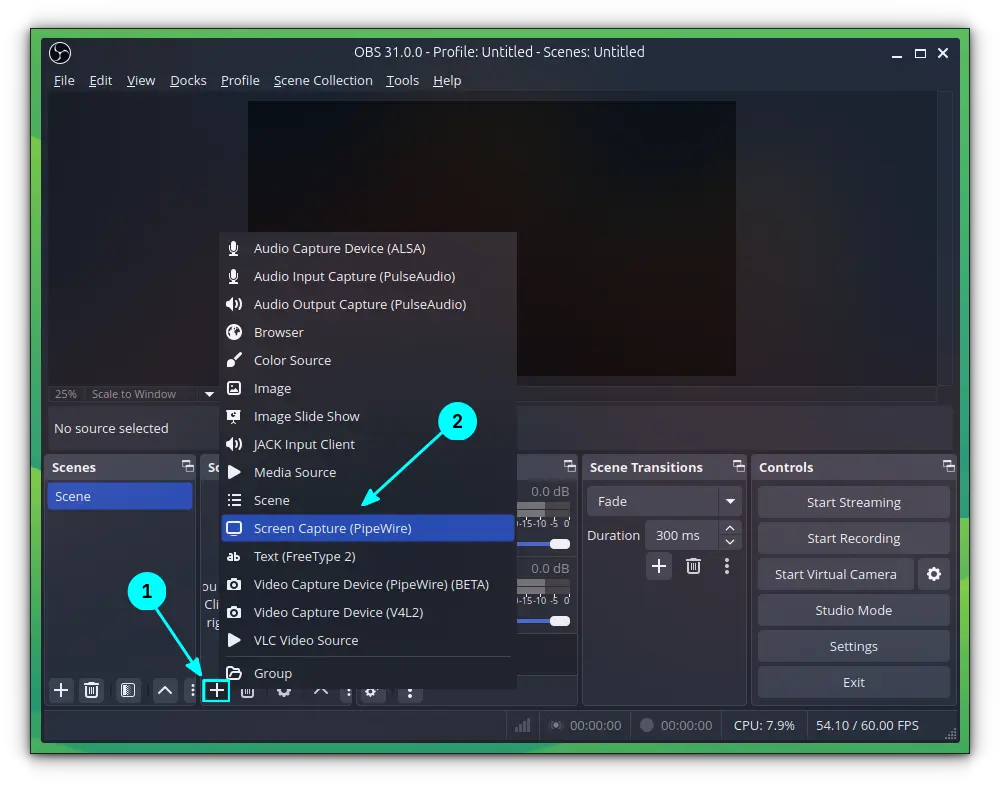
After creating the source, maximize a normal Windows application such as File Explorer.
Check whether the OBS preview changes.
If the preview remains black, temporarily disable other OBS sources and scene elements. This removes the possibility that another source, filter, or scene configuration is obscuring the captured image.
Also check:
OBS → Settings → Advanced
Review graphics-related settings without changing unrelated options.
If you use HDR on the laptop display, temporarily test with HDR disabled in:
Settings → System → Display → HDR
HDR and mixed SDR/HDR configurations can introduce capture differences depending on the Windows version, GPU driver, monitor configuration, and OBS capture path.
Verification: A newly created Display Capture source should show ordinary Windows applications such as File Explorer in the OBS preview.
Technical Note: If Display Capture works but Game Capture remains black, stop modifying Display Capture settings; the problem has been narrowed to the application/game capture path.
Method 3: Update or Roll Back the Graphics Driver
If the black screen began immediately after a graphics-driver update, investigate the driver before reinstalling OBS.
Open:
Device Manager → Display adapters
You may see entries for:
- Intel Graphics
- NVIDIA GeForce
- AMD Radeon
Expand Display adapters and identify the GPU actually responsible for the laptop display.
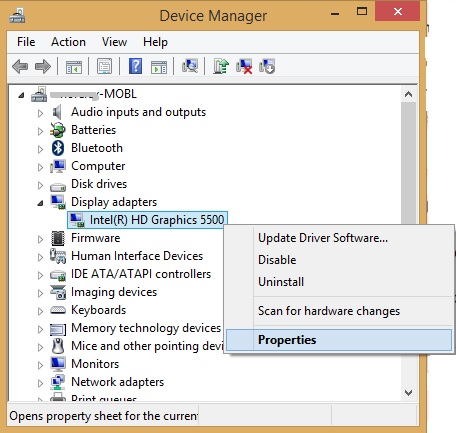
Right-click the relevant adapter and select:
Properties → Driver
Check:
- Driver Provider
- Driver Date
- Driver Version
If the problem started after a recent driver update and Roll Back Driver is available, rolling back can be a useful diagnostic test.
Otherwise, obtain the appropriate driver from the laptop manufacturer or GPU manufacturer’s official support channel.
Do not install a random graphics driver simply because its name matches the GPU family. Laptop graphics configurations can include manufacturer-specific power management and hybrid-GPU components.
After updating or rolling back, restart Windows and test OBS again.
Verification: After the driver change and Windows restart, OBS should display the desktop or target application normally instead of producing a black capture frame.
Warning: Do not uninstall every display adapter in Device Manager as a first troubleshooting step. On hybrid-GPU laptops, removing the wrong driver can affect display output, brightness controls, power management, or external-monitor behavior.
Long-Term Prevention & Configuration Lock
1. Record the working GPU assignment
Once OBS works, note whether Windows has OBS configured for Power saving, High performance, or another GPU option.
Major Windows or graphics-driver updates can change application GPU preferences.
2. Keep OBS and graphics drivers maintained
Update OBS and GPU drivers when there is a genuine compatibility or security reason, but avoid changing several components simultaneously when troubleshooting.
If OBS stops capturing immediately after one update, you have a much clearer starting point.
3. Keep separate scenes for desktop and application capture
Use a dedicated Display Capture scene for the desktop and a separate Game Capture scene for games or supported applications.
This makes it easier to identify whether a future black-screen problem affects OBS globally or only one capture method.
Advanced Edge-Case FAQ
Why is OBS black only on my laptop but works normally on my desktop PC?
The most common reason is the laptop’s hybrid-GPU architecture.
A desktop PC often has one GPU handling the relevant display pipeline, while a laptop may use integrated graphics for the internal display and a dedicated GPU for demanding applications.
Windows can therefore place OBS and the application being captured on different graphics processors. Checking Settings → System → Display → Graphics and testing the OBS GPU assignment is one of the first things to investigate.
Why does OBS capture my desktop but show a black screen when I use Game Capture?
Display Capture and Game Capture use different capture mechanisms.
If Display Capture works, OBS’s basic video output pipeline is functioning. The remaining problem may involve the game’s rendering mode, GPU assignment, anti-cheat restrictions, permissions, or the particular application’s compatibility with Game Capture.
Try running OBS normally first, then test the application’s capture mode separately. Avoid assuming that a working Display Capture configuration guarantees that every game can be captured through Game Capture.
Why does OBS show a black screen while audio continues recording?
Audio and video capture are separate pipelines.
OBS can successfully receive microphone or desktop audio while receiving no usable video frames from the selected capture source. This is why hearing sound in a recording does not prove that the video capture path is functioning.
Start by checking the capture source and GPU assignment rather than reinstalling audio drivers. If Display Capture works after changing the GPU configuration, the problem was confined to the video capture pipeline.