
Technical Root Cause & Diagnostics
During an S3 or S0ix (Modern Standby) power state transition, the OS suspends high-power buses to conserve energy. When waking up, the USB-C Multiplexer (MUX) and DisplayPort Alternate Mode (DP Alt Mode) PHY must run a link training sequence over the AUX channel while renegotiating Power Delivery (PD) contract states via the Type-C Port Controller (TCPC). A complete signal loss occurs when a timing desynchronization happens during this wake handoff—specifically when the GPU driver attempts to send a Display Data Channel (DDC/CI) polling request before the USB-C Retimer chip stabilizes the DisplayPort Main Link lanes.
When this timing window fails, the display engine drops the Hot Plug Detect (HPD) line pulse, causing the graphics stack to mark the monitor as completely disconnected. If the Timeout Detection and Recovery (TDR) timer triggers, Windows falls back to a dummy display context, locking the monitor into a no-signal power-save loop until a physical cable re-plug forces an explicit HPD interrupt.
-
Symptom: Display enters “No Signal – Entering Power Save Mode” immediately after resuming from S0ix or S3 sleep, requiring a cable disconnect/re-plug to resolve.
-
Symptom: Windows Event Viewer logs Event ID 4101 from source
Displaystating: “Display driver nvlddmkm stopped responding and has successfully recovered.” -
Symptom: System audio defaults back to internal laptop speakers, and open application windows collapse onto the main notebook display.
-
Symptom: Thunderbolt/USB4 Controller logs show PCI Express Link State Downgrade or DP Tunnelling Handshake Timeout errors.
Pre-Flight Sanity Checks (Rule Out the Basics)
-
Perform an EC (Embedded Controller) Reset: Shut down the laptop, disconnect the USB-C cable and power supply, then hold the physical power button for 30 seconds. This clears residual charge in the TCPC and resets the hardware registers managing DP Alt Mode pin assignment.
-
Execute a Graphics Driver Bus Reset: Upon waking the system to a black screen, press
Win + Ctrl + Shift + B. This forces the Desktop Window Manager (DWM) to tear down and recreate the display pipeline surface without rebooting. -
Isolate Bus Bandwidth and Cable Signal Degradation: Ensure you are using a full-featured USB 3.2 Gen 2×2 or USB4/Thunderbolt 4 cable rated for 40Gbps and 100W PD (E-Marked). Passive cables exceeding 0.8 meters suffer high attenuation on DP Alt Mode high-speed lanes, leading to link training failure during low-voltage wake conditions.
Method 1: Disable USB Selective Suspend & Fast Startup
Windows Fast Startup leaves the PCI Express controller and USB xHCI bus in a hybrid low-power sleep state, preventing full hardware re-initialization upon wake. Disabling Selective Suspend ensures the root hub keeps the TCPC PHY active.
Verification: Put the laptop into sleep mode for 5 minutes, wake the system via the keyboard, and check if the external monitor immediately renders the desktop without requiring a cable re-plug.
Technical Note: On systems utilizing Intel Dynamic Tuning Technology (DTT) or OEM-specific power managers (such as Lenovo Vantage or Dell Power Manager), local power plan settings can be overridden by system thermal policies. Ensure high-performance or balanced profiles are enforced across both AC and battery power modes.
Method 2: Reconfigure Display Driver Unresponsiveness (TDR) in Registry
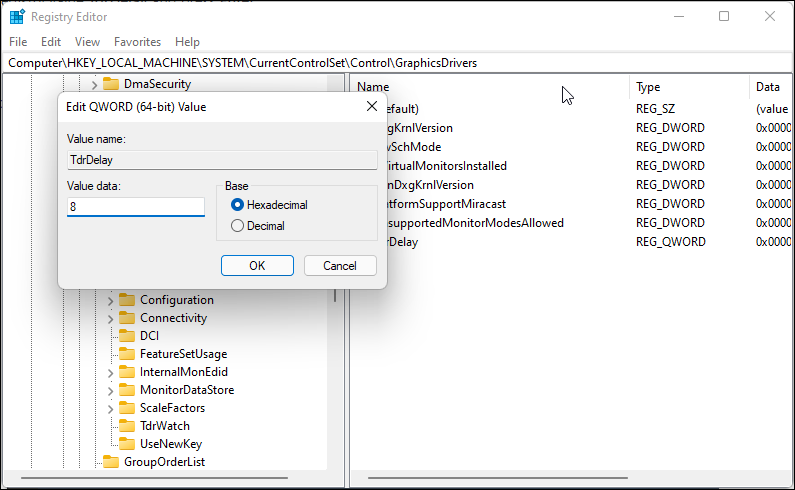
When a USB-C monitor wakes slowly, the GPU driver assumes the display hardware has hung and cancels the initialization thread. Increasing the Timeout Detection and Recovery (TDR) delay gives the USB-C Retimer chip sufficient time to establish link training.
-
Press
Win + R, typeregedit, and hit Enter to open the Registry Editor. -
Navigate to:
HKEY_LOCAL_MACHINE\SYSTEM\CurrentControlSet\Control\GraphicsDrivers -
Right-click the
GraphicsDriverskey, select New > DWORD (32-bit) Value, and name itTdrDelay. Set its Value data to10(Decimal). -
Right-click again, select New > DWORD (32-bit) Value, and name it
TdrDdiDelay. Set its Value data to10(Decimal). -
Navigate to:
HKEY_LOCAL_MACHINE\SYSTEM\CurrentControlSet\Control\Power -
Right-click, select New > DWORD (32-bit) Value, name it
PlatformAoAcOverride, and set its value to0to disable Network Standby interference during S0ix states. -
Close the Registry Editor and reboot the system.
Verification: Check Windows Event Viewer under Windows Logs > System after a wake cycle to ensure no Display Event ID 4101 entries are generated.
Warning: Incorrect modifications to the Windows Registry can result in system instability or boot failures. Always export key backups before making edits.
Method 3: Clean Reinstall Drivers & Purge Display Topology Cache
Corrupted display state topology stored in the OS registry can force the display driver to attempt an invalid DP link rate (such as HBR3 instead of HBR2) over degraded USB-C lanes during wake handshakes.
-
Download the latest Display Driver Uninstaller (DDU) utility alongside the latest WHQL driver package from your GPU vendor (Intel, NVIDIA, or AMD).
-
Hold
Shiftwhile clicking Restart in the Start Menu. Navigate to Troubleshoot > Advanced options > Startup Settings > Restart, then press4to enter Safe Mode. -
Launch DDU, select Device type: GPU, select your primary active GPU, and click Clean and restart.
-
Once back in standard Windows, install the downloaded WHQL GPU driver package.
-
Open Registry Editor (
regedit) and delete the following three keys to purge corrupted display topology cache:-
HKEY_LOCAL_MACHINE\SYSTEM\CurrentControlSet\Control\GraphicsDrivers\Configuration -
HKEY_LOCAL_MACHINE\SYSTEM\CurrentControlSet\Control\GraphicsDrivers\Connectivity -
HKEY_LOCAL_MACHINE\SYSTEM\CurrentControlSet\Control\GraphicsDrivers\ScaleFactors
-
Verification: Connect the monitor via USB-C, allow Windows to auto-populate fresh display keys, put the system to sleep, and confirm the monitor wakes in under 3 seconds.
Long-Term Prevention & Configuration Lock
-
Enforce Group Policy to Block Automatic Driver Rollbacks: Prevent Windows Update from overwriting working graphics and USB drivers. Open
gpedit.msc, navigate to Computer Configuration > Administrative Templates > Windows Components > Windows Update > Manage updates offered from Windows Update, and set Do not include drivers with Windows Updates to Enabled. -
Disable Monitor Deep Sleep in OSD: Access the monitor’s physical On-Screen Display (OSD) menu using its hardware buttons. Navigate to System / Power Management and disable features named Auto Source Detection, Deep Sleep, or USB-C Charging in Sleep Mode. Disabling these ensures the monitor’s internal TCPC maintains its termination resistors powered for immediate HPD detection.
-
Lock DisplayPort Link Rate Version: In the monitor’s OSD, manually set the DisplayPort version from
DP 1.4orDP 1.4 (DSC)down toDP 1.2if your resolution/refresh rate permits (such as 4K @ 60Hz without HDR). This reduces total link training complexity over USB Alt Mode.
Advanced Edge-Case FAQ
Why does this issue happen on my USB-C/Thunderbolt dock, but not when plugging the monitor directly into the laptop?
Docks introduce an MST (Multi-Stream Transport) hub chip alongside an additional retimer stage into the DisplayPort pipeline. During host wake, the laptop must execute two distinct link training operations sequentially: host-to-dock, then dock-to-monitor. If the dock’s MST hub finishes its internal firmware initialization after the host GPU has already polled the DP Aux channel, the GPU terminates the display pipeline. Updating the dock’s MCU firmware directly addresses this timing offset.
How do I fix this issue on laptops equipped with Advanced Optimus (Dynamic Display Switch)?
Advanced Optimus switches internal and external physical display outputs between the integrated GPU (iGPU) and discrete GPU (dGPU) using an internal hardware MUX. If the USB-C port is wired to the dGPU but the system enters sleep under iGPU control, the wake signal fails because the dGPU is powered down. To resolve this, open the NVIDIA Control Panel, navigate to Manage 3D Settings > Preferred graphics processor, and set it to High-performance NVIDIA processor, or set the display mode to dGPU Only in your system BIOS.
Could USB Power Delivery (PD) renegotiation cause the video signal to drop during wake?
Yes. When a monitor acts as both a display output and a Power Delivery source charging the laptop, waking the system forces a PD swap negotiation. If the laptop draws a sudden surge of power upon wake, the voltage rail on the VBUS line can temporarily dip below tolerance. This resets the TCPC chip, dropping the DP Alt Mode signal for 500–1000ms—long enough for Windows to tear down the external desktop context.