
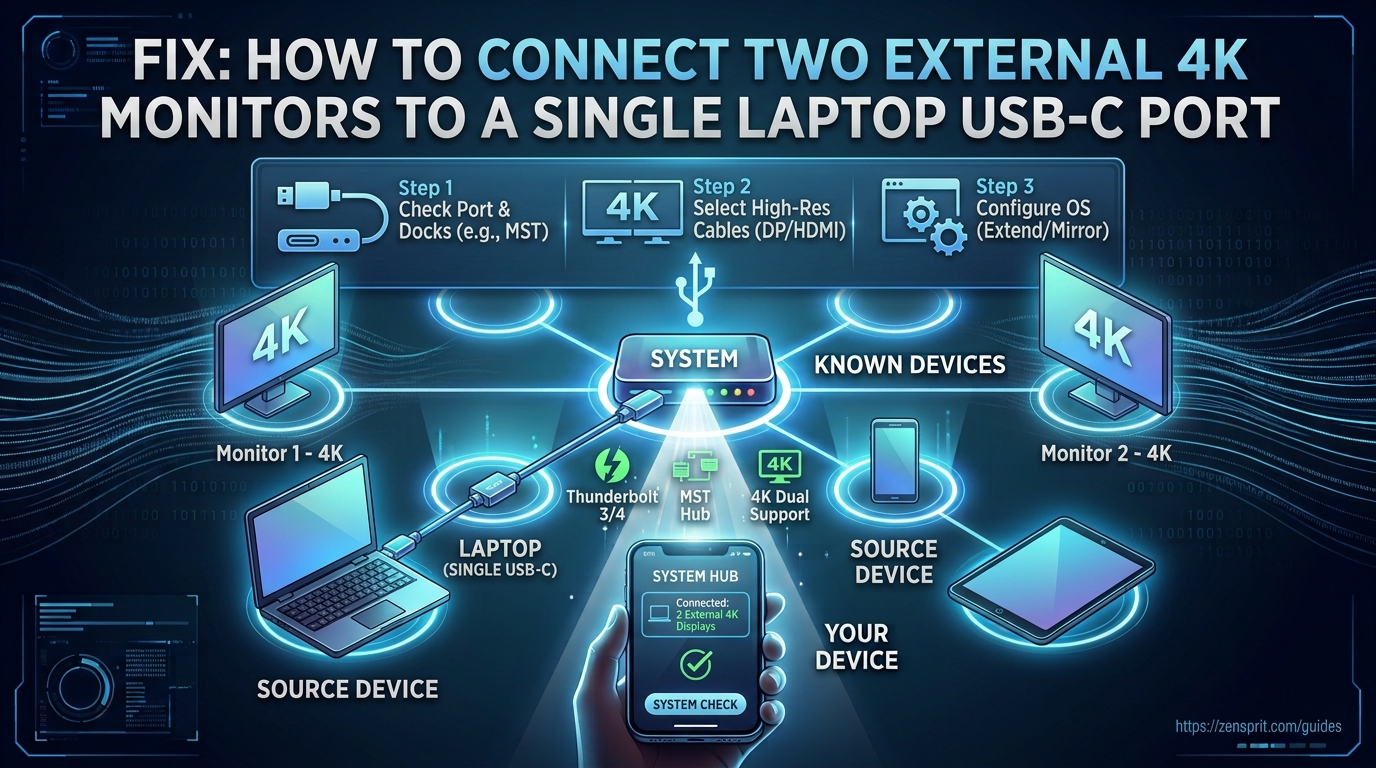
Technical Root Cause & Diagnostics
A single USB-C port can drive two external 4K monitors, but the connector itself does not guarantee that capability. The port must support an appropriate display-output technology, such as DisplayPort Alt Mode, Thunderbolt, or USB4, and the dock or adapter must have enough bandwidth to handle both displays. The laptop’s GPU and operating-system display architecture also determine which resolutions and refresh rates are available.
The most common mistake is buying a simple USB-C-to-dual-HDMI splitter and expecting two independent displays. A passive splitter generally duplicates the same video signal rather than creating two separately addressable displays. A proper MST hub, Thunderbolt dock, or DisplayLink-based dock may be required depending on the laptop’s hardware and the desired 4K refresh rate.
Typical symptoms include:
- One 4K monitor works but the second displays No Signal.
- Both monitors show the same desktop instead of extending independently.
- Windows detects only one external display.
- Both monitors work at 1080p but one fails at 4K.
- 4K works at 30 Hz but not 60 Hz.
- The monitors flicker when both are connected.
- A USB-C dock works with one monitor but not two.
- The laptop charges through the dock but does not detect both displays.
- Two displays work after boot but one disappears after sleep.
- HDMI adapters work individually but fail when used simultaneously.
Pre-Flight Sanity Checks (Rule Out the Basics)
1. Identify exactly what the USB-C port supports.
Look at the laptop manufacturer’s specifications for the specific USB-C port. Search for terms such as DisplayPort Alt Mode, Thunderbolt 3/4/5, or USB4.
Do not assume that a USB-C port with a charging symbol supports video output.
On Windows, open Device Manager and inspect Universal Serial Bus controllers, System devices, and Display adapters for hardware information that can help identify the platform.
2. Test each 4K monitor individually.
Connect Monitor A by itself and configure it to 3840 × 2160. Then disconnect it and repeat with Monitor B.
If either monitor fails independently, solve that problem before troubleshooting dual-display bandwidth.
3. Confirm the monitor cables and inputs.
Use known-good HDMI 2.0/2.1 or DisplayPort cables appropriate for the monitor’s required resolution and refresh rate. Manually select the correct HDMI or DisplayPort input on each monitor if automatic input detection is unreliable.
Method 1: Use a USB-C MST Hub or Compatible Dual-Display Dock
For a laptop whose USB-C port supports DisplayPort Alt Mode with MST, the simplest solution is a USB-C MST hub or dock with two independent display outputs.
The connection should look like:
Laptop USB-C → USB-C MST hub/dock → Monitor 1 + Monitor 2
Use DisplayPort or HDMI outputs on the dock according to the monitor’s available inputs.

After connecting both monitors in Windows 11, open:
Settings > System > Display
Windows should show the internal laptop display plus the two external displays.
Select Identify to determine which numbered display corresponds to each physical monitor.
Under Multiple displays, select:
Extend these displays
Then select each 4K monitor individually and verify:
Display resolution → 3840 × 2160
Open:
Settings > System > Display > Advanced display
and check the refresh rate available for each monitor.
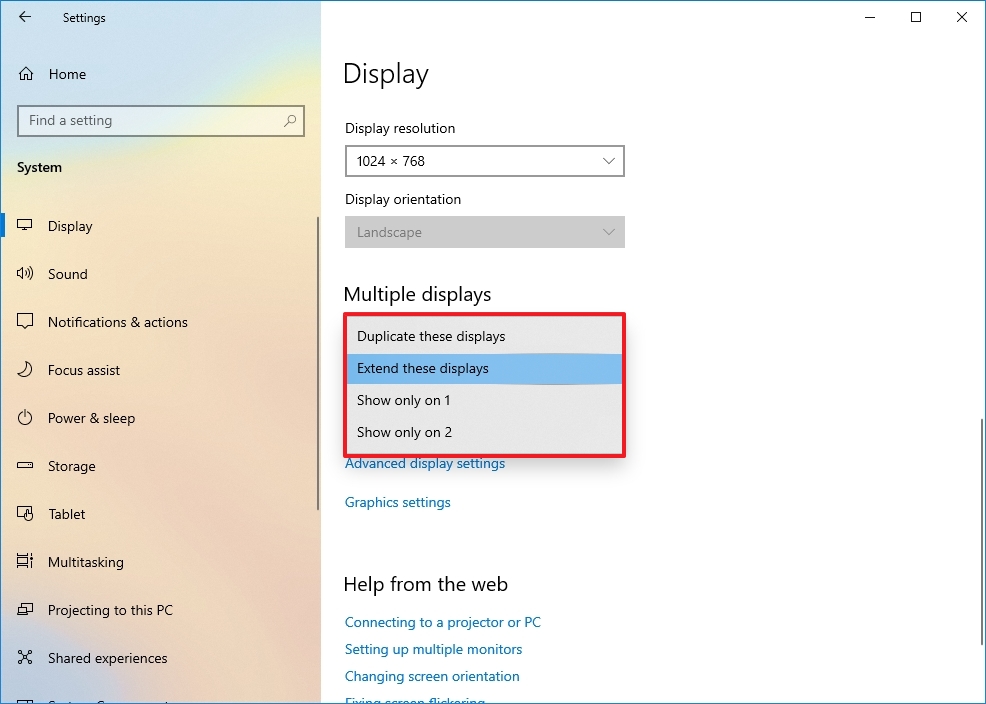
If the second monitor is not detected, press Win + Ctrl + Shift + B. This resets the Windows graphics driver without rebooting the computer.
Verification: With both monitors connected through the same USB-C dock, Windows should identify two separate external displays and allow you to move the mouse independently from one 4K desktop to the other.
Technical Note: MST availability depends on the laptop’s USB-C implementation and GPU/display architecture. A USB-C port can physically use the same connector while lacking the DisplayPort output required by an MST hub.
Method 2: Use a Thunderbolt or USB4 Dock When MST Bandwidth Is Insufficient
If the laptop supports Thunderbolt or USB4 with appropriate display functionality, a Thunderbolt/USB4 dock can provide a more capable dual-monitor connection.
Connect the dock to the laptop’s compatible USB-C/Thunderbolt port using the supplied upstream cable.
Connect both monitors directly to the dock’s DisplayPort or HDMI outputs.
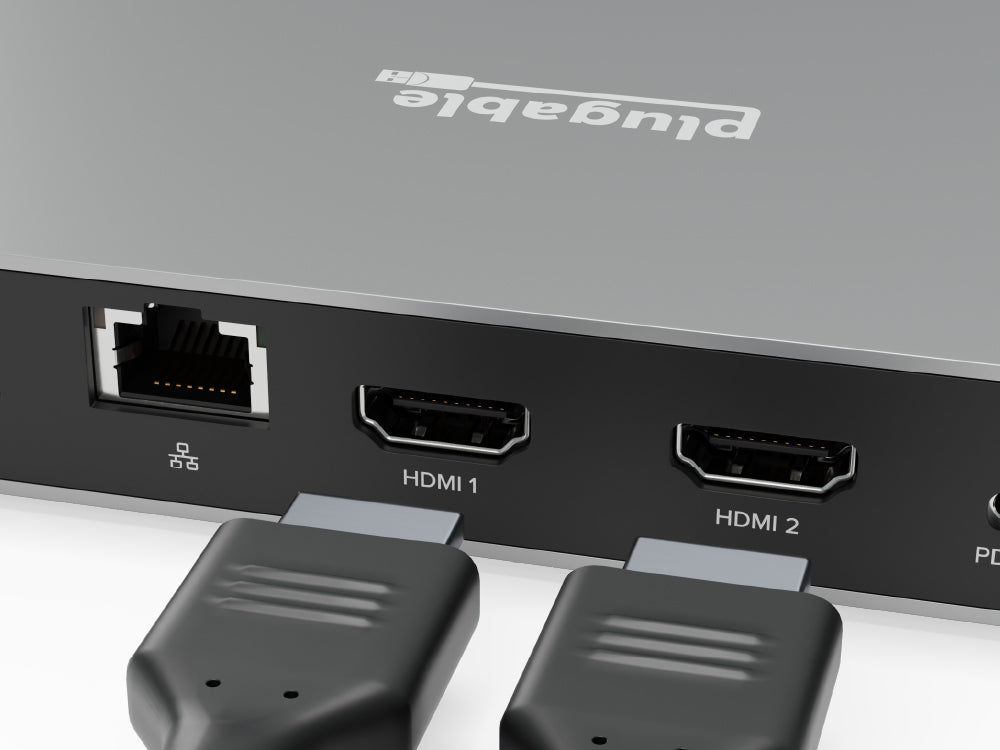
Install the dock manufacturer’s required firmware or driver package if applicable. Thunderbolt docks can also depend on system firmware, Thunderbolt software, chipset drivers, and BIOS configuration.
In Windows, open:
Settings > System > Display
and select Detect under the display arrangement options if one monitor is missing.
If both displays appear, configure them independently.
For maximum compatibility during testing, start with:
- Monitor 1: 3840 × 2160 at 60 Hz
- Monitor 2: 3840 × 2160 at 60 Hz
- HDR: Off temporarily
- Variable refresh rate: Off temporarily
Once stable, re-enable HDR or higher refresh rates individually.
The reason for starting conservatively is diagnostic isolation. Two 4K60 displays require considerably more display bandwidth than two 1080p screens, and additional features can increase the bandwidth or processing requirements.
Verification: Run both external monitors simultaneously at 3840 × 2160 and confirm that each maintains its selected refresh rate for at least 10–15 minutes without signal loss, flickering, or spontaneous reconnection.
Warning: Thunderbolt, USB4, and ordinary USB-C are not interchangeable specifications. Before buying a dock, verify the exact capabilities of the laptop’s USB-C port and the dock’s supported dual-display configuration.
Method 3: Use DisplayLink When the USB-C Display Pipeline Cannot Drive Both Screens
If the laptop cannot provide two independent displays through native DisplayPort Alt Mode or Thunderbolt/USB4, a DisplayLink-based USB graphics dock can provide another solution.
DisplayLink works differently from a conventional passive USB-C video splitter. It uses the computer’s USB data connection and a software graphics driver to transmit display frames to compatible hardware.
Connect the DisplayLink dock to the laptop’s USB-C port.
Install the DisplayLink driver supplied by the dock manufacturer or DisplayLink.
Connect both 4K monitors to the dock.
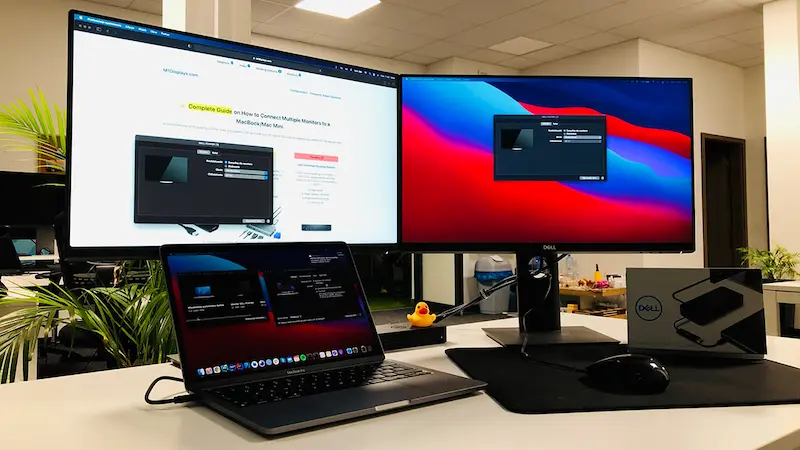
After installation, restart Windows if requested.
Open:
Settings > System > Display
and confirm that both monitors appear.
For testing, set both screens to 3840 × 2160 at 30 Hz if 60 Hz is unstable. Then increase the refresh rate on one monitor and retest.
DisplayLink is particularly useful when the laptop’s native USB-C display output cannot support the required number of displays, but it introduces a software and USB transport layer. This can make it less suitable for high-refresh gaming, color-critical workloads, or applications that depend heavily on direct GPU display output.
Verification: Both external monitors should appear as independent displays in Windows and remain extended across the desktop while running ordinary productivity applications; if one disappears under sustained graphics load, lower the refresh rate and check the DisplayLink driver and dock firmware.
Long-Term Prevention & Configuration Lock
1. Match the dock to the laptop’s actual display specification.
Before replacing a working dock, record the laptop model, USB-C/Thunderbolt specification, GPU, monitor resolution, and required refresh rate. This prevents accidentally buying a dock that supports two monitors only at lower resolutions.
2. Keep graphics, chipset, USB4/Thunderbolt, and dock firmware updated.
Dual-display problems can appear after Windows or firmware updates because the display stack depends on several components working together. Keep a record of the previously working driver versions if the system is mission-critical.
3. Avoid mixing unnecessary adapters.
Every additional USB-C-to-HDMI or DisplayPort conversion adds another compatibility point. Where possible, use the dock’s native DisplayPort outputs with DisplayPort-equipped monitors, or use a direct HDMI connection where the required HDMI specification is supported.
Advanced Edge-Case FAQ
Can a normal USB-C splitter connect two separate 4K monitors?
Usually not in the way users expect. A passive splitter may duplicate one video signal onto two outputs, meaning both monitors display the same image rather than acting as independent Windows displays. For two independent desktops, the laptop and adapter must support a technology capable of presenting separate display streams, such as MST, Thunderbolt/USB4 display output, or DisplayLink.
Why do both monitors work at 1080p but fail when I select 4K?
This is usually a bandwidth or link-capability limitation. Two 4K displays at high refresh rates require substantially more display bandwidth than two 1080p displays. The limiting component can be the laptop’s USB-C DisplayPort implementation, MST hub, dock, cable, adapter output, or monitor input. Test both displays at 3840 × 2160 at 30 Hz first, then increase refresh rates individually to identify where the connection becomes unstable.
Why does my laptop charge through the USB-C dock but only one monitor works?
USB-C Power Delivery and USB-C video output are separate capabilities. A dock can successfully deliver power and USB data while the laptop’s USB-C port or dock configuration cannot provide two independent display streams. Check the laptop’s exact port specification and the dock’s supported display topology. If native dual-display output is unavailable, a compatible DisplayLink dock may be the practical alternative.