

Technical Root Cause & Diagnostics
High ping and packet loss during a video conference usually come from Wi-Fi interference, network congestion, bufferbloat, weak wireless signal, or an unstable ISP connection. A connection can show excellent download speed in a speed test and still produce poor Zoom, Teams, or Google Meet performance because video calls need consistent latency rather than just high bandwidth.
I start by separating local Wi-Fi problems from internet-side problems. If the laptop loses packets while communicating with the router, changing DNS or reinstalling a video-conferencing app will not solve the issue. If the router responds consistently but internet packets are lost beyond the router, the ISP connection or upstream network becomes the more likely cause.
Typical symptoms include:
- Video freezes for several seconds.
- Voices sound robotic or break up.
- People appear to talk over each other because of delay.
- Camera quality repeatedly drops.
- Meeting applications report unstable network conditions.
- Ping suddenly jumps from around 20–40 ms to several hundred milliseconds.
- Packet loss appears when someone starts downloading or uploading large files.
- The problem is much worse over Wi-Fi than Ethernet.
Pre-Flight Sanity Checks (Rule Out the Basics)
1. Test the router separately from the internet
Open Command Prompt and find your gateway:
ipconfigLook for Default Gateway, for example:
192.168.1.1Then run:
ping 192.168.1.1 -tLet it run while the video conference is experiencing problems.
If the gateway ping jumps dramatically or shows timeouts, the issue is likely between the laptop and router.
Press Ctrl + C to stop the test.
2. Test the internet path
Run:
ping 1.1.1.1 -tCompare the results with the gateway test.
If the router stays around a consistent latency but 1.1.1.1 suddenly becomes slow or loses packets, investigate the internet connection rather than the laptop’s Wi-Fi link.
3. Check whether another device is using the connection heavily
Pause:
- Large downloads
- Cloud backups
- Game updates
- Video uploads
- Torrent applications
- Security-camera cloud uploads
- Windows or software updates
A video call can suffer when another device fills the connection’s upload capacity.
Method 1: Move the Laptop to a Cleaner Wi-Fi Connection
Wi-Fi interference is one of the first things I eliminate because the laptop may have a strong signal while still experiencing retransmissions and packet loss.
If your router supports both 2.4 GHz and 5 GHz, connect the laptop to 5 GHz when you are reasonably close to the router.
In Windows 11:
Settings → Network & internet → Wi-Fi → Properties
Check the connected network information.
You can also run:
netsh wlan show interfacesLook for information such as:
Signal
Radio type
Channel
Receive rate
Transmit rate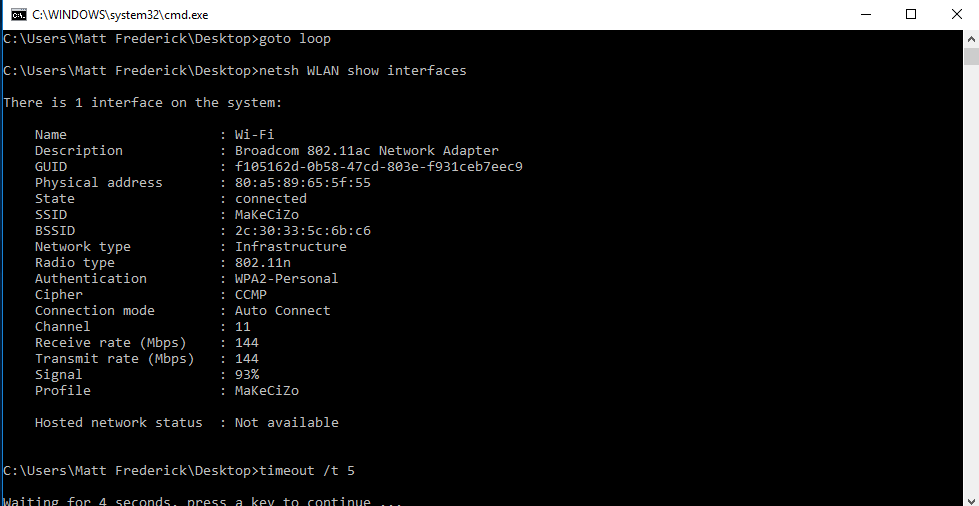
If possible, temporarily move the laptop into the same room as the router and repeat the conference.
For an important meeting, Ethernet is an even better test. Connect the laptop directly to the router and disable Wi-Fi temporarily.
Verification: Join another video call or test session and confirm that latency and packet loss remain stable when the laptop is close to the router or connected through Ethernet.
Technical Note: A high Wi-Fi signal percentage does not guarantee a clean connection. Interference and retransmissions can cause packet loss even when Windows reports a strong signal.
Method 2: Find and Reduce Bufferbloat During Uploads or Downloads
If ping is normally low but suddenly becomes very high whenever somebody uploads or downloads heavily, the problem may be bufferbloat.
The router can accumulate large queues of packets while the connection is saturated. Your video-call packets then wait behind bulk traffic.
First establish whether bandwidth usage triggers the latency increase.
Run:
ping 1.1.1.1 -tWhile watching the ping results, start a large download or upload.
For example, you might normally see:
Reply ... time=24ms
Reply ... time=22ms
Reply ... time=25ms
During heavy traffic, the latency may suddenly rise:
Reply ... time=180ms
Reply ... time=320ms
Reply ... time=450ms
Stop the transfer and see whether latency falls again.
If that pattern is repeatable, open your router’s administration interface and look for QoS, Smart Queue Management, Traffic Control, or a similar feature.
The exact terminology varies between router models.
Enable the router’s traffic-management feature if available and configure reasonable upload/download limits based on your actual connection speed.
Do not simply give the video-conferencing application maximum priority while leaving the connection completely saturated. The underlying goal is to keep the router from building an excessively large queue.
Verification: Start a controlled large upload or download while running ping 1.1.1.1 -t and confirm that latency remains substantially more stable than it was before QoS or traffic management was configured.
Warning: Do not enter an arbitrary bandwidth figure. An incorrect QoS configuration can reduce performance or cause traffic shaping to behave poorly; use the actual measured capability of your internet connection as the starting point.
Method 3: Isolate the ISP Connection From the Laptop and Router
If the gateway ping is stable but internet packets continue to show loss, test another device on the same connection.
Connect a second laptop or desktop to the same router and run:
ping 1.1.1.1 -tIf both devices show packet loss at the same time, the Windows laptop is unlikely to be the primary cause.
You can also use:
tracert 1.1.1.1This shows the path from your computer toward the destination.
For a more detailed packet-loss test on supported Windows versions, you can use:
pathping 1.1.1.1pathping takes considerably longer because it collects additional information.
Do not assume that packet loss reported at an intermediate tracert hop automatically means that hop is broken. Some network devices deprioritize diagnostic traffic while forwarding normal traffic correctly.
The useful pattern is persistent loss that continues to later hops or the final destination, especially when it matches the timing of the video-call problems.
Verification: Confirm whether packet loss occurs on multiple devices connected to the same router and whether the loss persists toward the final destination rather than appearing only at an intermediate diagnostic hop.
Technical Note: A single ping timeout is not enough evidence of an ISP fault. Look for a repeatable pattern during the same period in which the conference is actually experiencing freezes, audio gaps, or severe latency.
Long-Term Prevention & Configuration Lock
1. Use Ethernet for critical meetings when practical.
A wired connection removes the local Wi-Fi radio from the troubleshooting equation and is often the simplest way to obtain consistent latency.
2. Keep large uploads away from meeting times.
Cloud synchronization, video backups, security-camera uploads, and large file transfers can consume upload capacity surprisingly quickly.
3. Configure router QoS if the connection regularly becomes congested.
A properly configured queue-management system can be more useful for video calls than simply purchasing a faster internet package, particularly when the existing connection is frequently saturated.
Advanced Edge-Case FAQ
1. Why is my download speed excellent but my video calls still have high ping?
A speed test measures throughput under a particular test pattern. A video conference depends heavily on latency, jitter, packet loss, and upload stability.
You can have a 300 Mbps connection that performs poorly during a call if the Wi-Fi link is retransmitting packets or another device is filling the upload queue.
Test the router with ping while the connection is idle and again while another device performs a large transfer. If latency increases dramatically under load, investigate congestion and bufferbloat.
2. Why does packet loss happen only when I use Wi-Fi?
The wireless link can be affected by distance, walls, neighboring networks, Bluetooth activity, microwave interference, crowded channels, and power-management behavior.
The quickest comparison is Ethernet. If the same laptop has stable latency and no meaningful packet loss over Ethernet but becomes unreliable on Wi-Fi, concentrate on the wireless environment, router configuration, and Wi-Fi driver rather than the ISP.
3. Why does my video call become unstable when someone uploads a file?
Upload capacity is often the limiting factor. Once the upstream connection becomes saturated, packets generated by the video-conferencing application can sit in the router’s queue behind the file upload.
This is why a normal speed test can look excellent while a simultaneous meeting becomes unusable. Reducing the upload rate, pausing the transfer, or configuring appropriate QoS/queue management can prevent the large upload from consuming the entire upstream connection.