
Technical Root Cause & Diagnostics
An inverted touchpad scroll direction or missing gestures is usually caused by a Windows touchpad setting, incorrect touchpad driver, OEM driver replacement, or a touchpad being detected through a different driver than before. The fix depends on whether Windows still recognizes the touchpad as a precision touchpad.
I start by checking the Windows touchpad settings and Device Manager before reinstalling anything. A driver reinstall can fix a broken gesture configuration, but it can also remove manufacturer-specific features if Windows replaces the OEM driver with a generic one.
Common symptoms include:
- Two-finger scrolling moves in the opposite direction.
- Two-finger scrolling stops completely.
- Pinch-to-zoom no longer works.
- Three-finger gestures disappeared.
- Four-finger gestures stopped responding.
- Touchpad works for pointer movement but not gestures.
- Gestures stopped immediately after a Windows or driver update.
- An external mouse works normally while the touchpad behaves incorrectly.
Pre-Flight Sanity Checks (Rule Out the Basics)
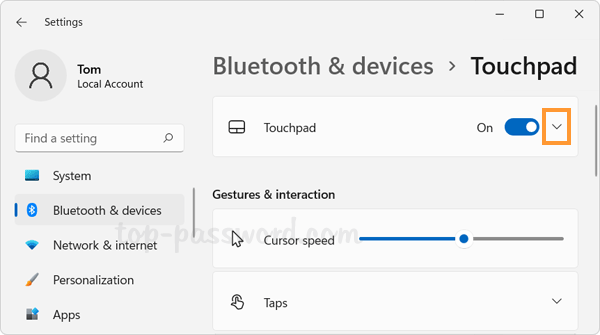
1. Confirm the touchpad is enabled
Open:
Settings → Bluetooth & devices → Touchpad
Make sure Touchpad is turned on.
If your laptop has a physical touchpad-disable key, check it as well. On many laptops this is an Fn key combined with an F key containing a touchpad icon.
2. Test two-finger scrolling
Open a webpage or document and place two fingers on the touchpad.
Move both fingers upward and downward.
If the pointer moves correctly but two-finger scrolling does nothing, the problem is more likely related to the touchpad driver or gesture configuration than the physical touchpad.
3. Check whether the problem affects all gestures
Test:
- Two-finger scrolling
- Pinch-to-zoom
- Three-finger swipe
- Three-finger tap
- Four-finger gestures, if supported
This helps determine whether one gesture is misconfigured or the entire gesture driver has stopped working.
Method 1: Correct the Touchpad Scrolling Direction and Gestures
Windows 11 provides the main Precision Touchpad controls directly in Settings.
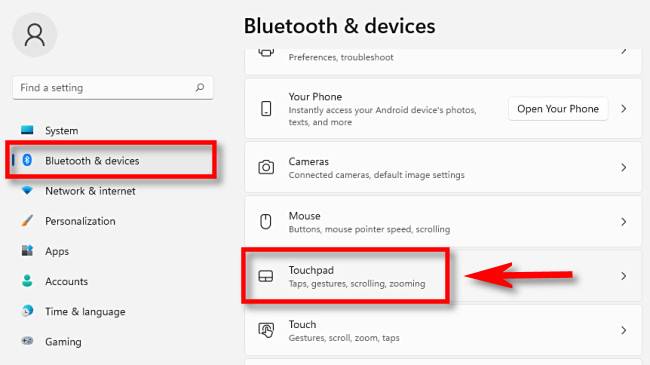
Go to:
Settings → Bluetooth & devices → Touchpad
Expand Scroll & zoom.
Look for:
Scrolling direction
Choose the direction that matches your preferred behavior.
Then expand Three-finger gestures and Four-finger gestures, if available.
Check that the desired actions are still assigned.
For example, three-finger swipes can be configured for switching applications, showing the desktop, or other supported Windows actions.
If Scroll & zoom or the gesture sections are completely missing, don’t assume the settings are simply hidden. That can indicate that Windows is not currently using the expected touchpad driver.
Verification: Open a browser and confirm that two-finger scrolling moves in the expected direction and that at least one configured multi-finger gesture responds correctly.
Technical Note: A Precision Touchpad normally exposes gesture controls directly through Windows Settings. A laptop using an older vendor-specific touchpad implementation may expose different controls or rely on manufacturer software.
Method 2: Reinstall or Roll Back the Touchpad Driver
If the gestures disappeared after a Windows update or driver change, inspect Device Manager.
Right-click Start → Device Manager.
Expand:
Human Interface Devices
Look for entries such as:
- HID-compliant touch pad
- I2C HID Device
- Precision Touchpad
Also check:
Mice and other pointing devices
Some laptops expose the touchpad through this section.

Right-click the suspected touchpad device and select:
Properties → Driver
Check the Driver Provider, Driver Date, and Driver Version.
If the problem began immediately after a driver update, check whether Roll Back Driver is available.
If rollback is unavailable, you can try:
Uninstall device → Uninstall
Then restart Windows.
Windows may detect the hardware again and reinstall an appropriate driver.
Verification: After restarting, return to Settings → Bluetooth & devices → Touchpad and confirm that Scroll & zoom and the expected gesture controls have returned.
Warning: Do not uninstall random entries under Human Interface Devices. If the touchpad disappears completely, use the laptop manufacturer’s support page to obtain the correct touchpad, chipset, and Serial IO/I2C drivers for the exact model.
Method 3: Install the Laptop Manufacturer’s Touchpad and Chipset Drivers
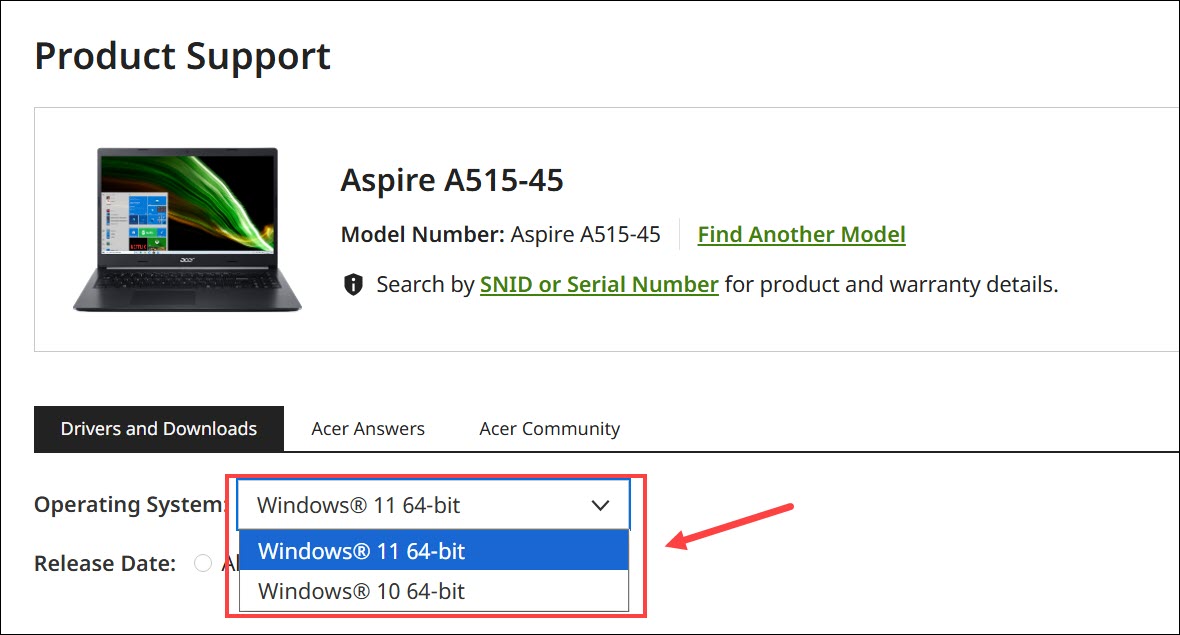
If Windows detects the touchpad but gestures remain broken, install the correct drivers from the laptop manufacturer’s support site.
This is particularly important after:
- A clean Windows installation
- A major Windows upgrade
- BIOS/UEFI changes
- A chipset-driver change
- A migration from one Windows version to another
Find your laptop’s exact model and download the drivers intended for your Windows version.
Depending on the manufacturer, touchpad functionality may depend on more than a single touchpad driver. Chipset, Serial IO, I2C, or HID-related drivers can affect whether the touchpad communicates correctly with Windows.
Install the manufacturer’s recommended chipset/Serial IO components first when their instructions specify an order, then install the touchpad driver.
Restart Windows afterward.
If the manufacturer provides a dedicated touchpad utility, check its settings for gesture configuration as well.
Verification: After the final restart, test two-finger scrolling, pinch-to-zoom, and three-finger gestures and confirm that they respond consistently in Windows applications.
Technical Note: Avoid downloading touchpad drivers from random driver websites. The correct package can depend on the laptop’s exact hardware configuration even when two machines have similar model names.
Long-Term Prevention & Configuration Lock
1. Record the working driver version
Once the touchpad works correctly, open:
Device Manager → Touchpad device → Properties → Driver
Record the driver provider and version.
This gives you a reference if a future Windows update changes the behavior.
2. Don’t replace a working OEM driver unnecessarily
Windows Update can provide drivers automatically, but the newest driver is not always the best match for every laptop’s gesture implementation.
If your manufacturer’s driver provides features that the generic Windows driver does not, keep the OEM package available.
3. Check touchpad settings after major Windows updates
After a major Windows update, check:
Settings → Bluetooth & devices → Touchpad
Make sure scrolling direction and gesture assignments have not changed.
Advanced Edge-Case FAQ
1. Why does the touchpad move the pointer but not support scrolling?
Pointer movement and multi-finger gestures are not necessarily handled in exactly the same way.
A basic pointing function can continue working while the correct Precision Touchpad or OEM gesture driver is missing.
Check Settings → Bluetooth & devices → Touchpad first. If advanced gesture controls are missing, inspect Device Manager and reinstall the manufacturer’s appropriate drivers.
2. Why did my touchpad gestures stop immediately after a Windows update?
Windows Update can install or replace hardware drivers. If the new driver handles the touchpad differently, gestures that previously worked can disappear or behave differently.
Check Device Manager → touchpad device → Properties → Driver and compare the driver date/version with when the problem started.
If Roll Back Driver is available and the timing clearly matches the update, rollback is a reasonable diagnostic step.
3. What if the touchpad is completely missing from Windows Settings and Device Manager?
That is different from a simple gesture configuration problem.
First check whether the touchpad is disabled through a keyboard shortcut or BIOS/UEFI setting. Then install the laptop manufacturer’s chipset, Serial IO/I2C, and touchpad drivers in the recommended order.
If the touchpad still does not appear as hardware, the issue may involve firmware, the internal touchpad connection, or the touchpad hardware itself rather than Windows gesture settings.