
Target environment: Windows 11/10 with Google Drive for desktop
Google Drive for desktop can remain on “Preparing for sync” when its local cache, account session, file database, network connection, or Windows file permissions prevent the sync engine from completing its initial scan. The problem is usually not that Google Drive cannot access the internet; it is that the desktop client is unable to finish processing its local sync state.
I troubleshoot this by checking whether the problem affects one folder, the entire Drive account, or the Drive application itself. That distinction matters because deleting and reinstalling the application unnecessarily can remove useful diagnostic information and does not always fix a damaged local database.
Technical Root Cause & Diagnostics
Google Drive for desktop maintains local application data that helps it track files, account state, cached information, and synchronization status. If that data becomes inconsistent after an application update, Windows shutdown, network interruption, account change, or storage problem, the application can remain indefinitely at “Preparing for sync.”
The other common cause is a file or folder that the client cannot process correctly. Long paths, inaccessible folders, unsupported filesystem locations, permissions problems, antivirus interference, or a large number of pending changes can make the initial scan appear frozen.
Common symptoms include:
- Drive for desktop continuously displays “Preparing for sync.”
- Files remain in the sync queue without progress.
- The Google Drive icon stays active for a long time.
- Newly created files do not appear on the other device.
- Sync works after restarting Windows but becomes stuck again.
- Only one computer experiences the problem.
- Google Drive uses noticeable CPU or disk activity without completing synchronization.
- The application repeatedly changes between connecting and preparing states.
Pre-Flight Sanity Checks (Rule Out the Basics)
Before resetting anything, perform these three quick checks.
1. Confirm the internet connection
Open a browser and sign in to Google Drive on the web.
If the web version loads normally, your Google account and Google’s service are probably reachable, narrowing the problem to the desktop application or local computer.
2. Check available disk space
Open File Explorer → This PC and check the free space on the Windows system drive.
A nearly full drive can prevent Google Drive from creating temporary files, updating its local database, or completing downloads.
3. Check whether the problem affects every folder
Create a small test text file inside a folder that is supposed to synchronize.
Give it a simple name such as:
DriveSyncTest.txt
Wait several minutes and check Google Drive on the web.
If the test file appears but another folder does not synchronize, the problem is probably folder-specific rather than a complete Drive client failure.
Method 1: Restart Google Drive for Desktop and Reconnect the Sync Engine
The first fix is a clean restart rather than immediately reinstalling the application.
- Click the Google Drive icon in the Windows notification area.
- Click the Settings gear.
- Choose Quit.
- Wait approximately 15–30 seconds.
- Open the Windows Start menu.
- Search for Google Drive.
- Launch Google Drive again.
- Allow the application to reconnect to your Google account.
- Check the synchronization status.
If the Drive icon is hidden, click the ^ arrow in the notification area first.

Do not immediately start copying hundreds of files after restarting. First test with one small file.
Create or modify a small file in the affected Drive location and watch whether the status changes from Preparing for sync to a synchronization state and eventually completes.
Verification: Google Drive should finish its preparation stage and successfully synchronize a newly modified test file to the web interface.
Technical Note: If restarting fixes the problem temporarily but the same issue returns after every Windows restart, suspect persistent local application data, a background security program, or a problematic folder rather than a simple application hang.
Method 2: Reset Google Drive’s Local Application State
If the application remains stuck after a clean restart, the next step is to reset its local state rather than repeatedly restarting Windows.
First quit Google Drive for desktop completely.
Press:
Win + R
Enter:
%LOCALAPPDATA%
and press Enter.
Look for the Google Drive application data associated with the installed client.
Because Google can change the application’s internal folder structure between releases, do not randomly delete folders inside AppData. The safer approach is to use the Drive application’s built-in disconnect/reconnect process first if it is available.
Open Google Drive for desktop and go to:
Settings → Preferences → Advanced settings
Look for account/disconnection controls and disconnect the affected Google account if the interface provides the option.
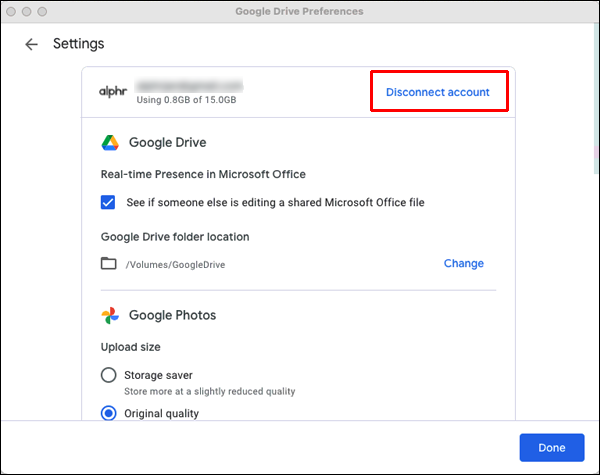
After disconnecting, close the application and restart Windows. Launch Drive again and sign back into the same account.
Allow the client to rebuild its local synchronization state.
This can take considerably longer when the account contains a large number of files because Drive must inspect the local state again.
Verification: After signing back in, Google Drive should complete account initialization and begin processing files instead of remaining permanently at “Preparing for sync.”
Warning: Do not manually delete Google Drive’s AppData folders while Drive is running. Also avoid deleting locally stored files simply because they appear in a Drive-related directory; depending on your configuration, those files may represent locally mirrored or streamed content.
Method 3: Isolate a Problematic Folder, File, or Windows Permission
If Google Drive still hangs, determine whether one particular directory is blocking the synchronization scan.
Start with a small test directory.
For example, create:
C:\DriveSyncTest
Place only one small text file inside it.
If your Drive configuration allows that folder to be synchronized, test it separately from the large folder that appears to be stuck.
If the test folder synchronizes normally, gradually narrow down the original folder.
Look for:
- Very deeply nested directories
- Extremely long filenames
- Files that are constantly being modified
- Temporary files created by another application
- Locked files
- Folders controlled by another Windows account
- Large application-generated folders
- Antivirus or backup software actively scanning the directory
You can also check the folder permissions.
Right-click the affected folder and select:
Properties → Security
Confirm that your Windows account has appropriate access to the folder.
Do not change ownership or grant broad permissions unless you understand why the existing permissions are preventing access.
If the problem appears only with one folder, temporarily move a small subset of files into a clean test folder and observe whether synchronization resumes.
Verification: If Drive synchronizes the clean test folder while the original directory remains stuck, you have isolated the problem to the original folder, its contents, or its permissions.
Technical Note: A folder containing continuously changing files can keep generating synchronization work faster than the client can finish it, making “Preparing for sync” appear permanent even though the application is processing files.
Long-Term Prevention & Configuration Lock
1. Keep the Drive database on a healthy local drive
Avoid running the application from a Windows installation that is critically low on free space. Maintain enough free storage for Windows, temporary files, and Drive’s local operations.
2. Avoid synchronizing unnecessary application folders
Do not point Drive synchronization at directories containing browser caches, temporary files, build outputs, or application databases unless you specifically need them synchronized.
These folders can change thousands of times without obvious user activity.
3. Be careful with security and backup software
If the problem repeatedly appears after installing or updating antivirus, ransomware protection, backup, or filesystem-monitoring software, check whether it is interfering with Google Drive.
Do not permanently disable security software just to test synchronization. Use its documented exclusions or troubleshooting controls when appropriate.
Advanced Edge-Case FAQ
Why does Google Drive stay on “Preparing for sync” when my internet connection works?
A working internet connection only proves that the computer can reach the network. Google Drive must also scan local folders, read file metadata, maintain synchronization state, process permissions, and communicate with Google’s servers.
If the web version of Drive works normally but the desktop application remains stuck, focus your investigation on the Windows client, its local state, the selected folders, and security software.
Why does Google Drive synchronize small files but get stuck on one particular folder?
That usually indicates a folder-specific problem rather than a complete Drive failure.
Check for extremely long paths, unusual filenames, inaccessible files, constantly changing files, locked files, and permissions differences. Temporarily moving a few files into a clean test folder is a useful way to determine whether the original directory is responsible.
Should I uninstall Google Drive for desktop if “Preparing for sync” never finishes?
Not as the first step.
Uninstalling and reinstalling the application can help when the installation itself is damaged, but it does not automatically correct every synchronization-state problem. First restart the application, check available storage and connectivity, isolate problematic folders, and use the application’s account/disconnection controls.
If those checks fail and the client remains unusable, then a clean reinstall becomes a reasonable final software-level troubleshooting step.