
Technical Root Cause & Diagnostics
A Windows 11 laptop that loses most or all of its battery charge overnight while supposedly asleep is usually not experiencing normal Sleep behavior. The common causes are Modern Standby activity, wake timers, connected standby devices, background networking, USB devices, or a firmware/driver component preventing the system from reaching a sufficiently low-power state.
I diagnose this by first determining which sleep model the laptop actually uses. On newer systems, Windows may use Modern Standby (S0 Low Power Idle) instead of the older S3 Sleep state. Modern Standby allows the system to wake for selected network, maintenance, notification, and device activity. A laptop can therefore appear asleep while still consuming considerably more power than expected.
Typical symptoms include:
- Battery falls dramatically overnight while the lid is closed.
- The laptop is warm inside a bag even though the screen is off.
- Battery drops from 80–100% to 0–20% within several hours.
- The computer wakes intermittently while sleeping.
- Fans occasionally spin while the lid is closed.
- The laptop resumes with several percent less battery than expected.
- Windows reports unexpected wake activity.
- Battery usage shows unusually high consumption while the device was supposed to be idle.
- The problem becomes worse after a Windows, BIOS, chipset, or driver update.
Pre-Flight Sanity Checks (Rule Out the Basics)
1. Compare Sleep with Hibernate.
Open Settings > System > Power & battery > Screen, sleep, & hibernate timeouts and temporarily use Hibernate instead of Sleep for an overnight test if Hibernate is available.
Hibernate writes the current memory state to storage and substantially reduces power consumption compared with an active low-power standby state.
Close your applications, hibernate the laptop, leave it disconnected from AC power overnight, and check the battery percentage the next morning.
2. Check whether the battery is already deteriorating.
Open Command Prompt as administrator and run:
powercfg /batteryreport
Windows generates a battery report. Open the resulting HTML file and compare Design capacity with Full charge capacity.
A severely degraded battery can exaggerate the apparent overnight drain because its usable capacity is much lower than when the laptop was new.
3. Check the physical conditions around the laptop.
Do not leave the laptop inside a sleeve, backpack, or tightly enclosed compartment while testing Sleep. A machine that repeatedly wakes can accumulate heat even though the display remains off.
For the first diagnostic test, place it on a hard surface with the lid closed and nothing connected except the normal power/battery system.
Method 1: Identify Modern Standby and Replace Sleep With Hibernate
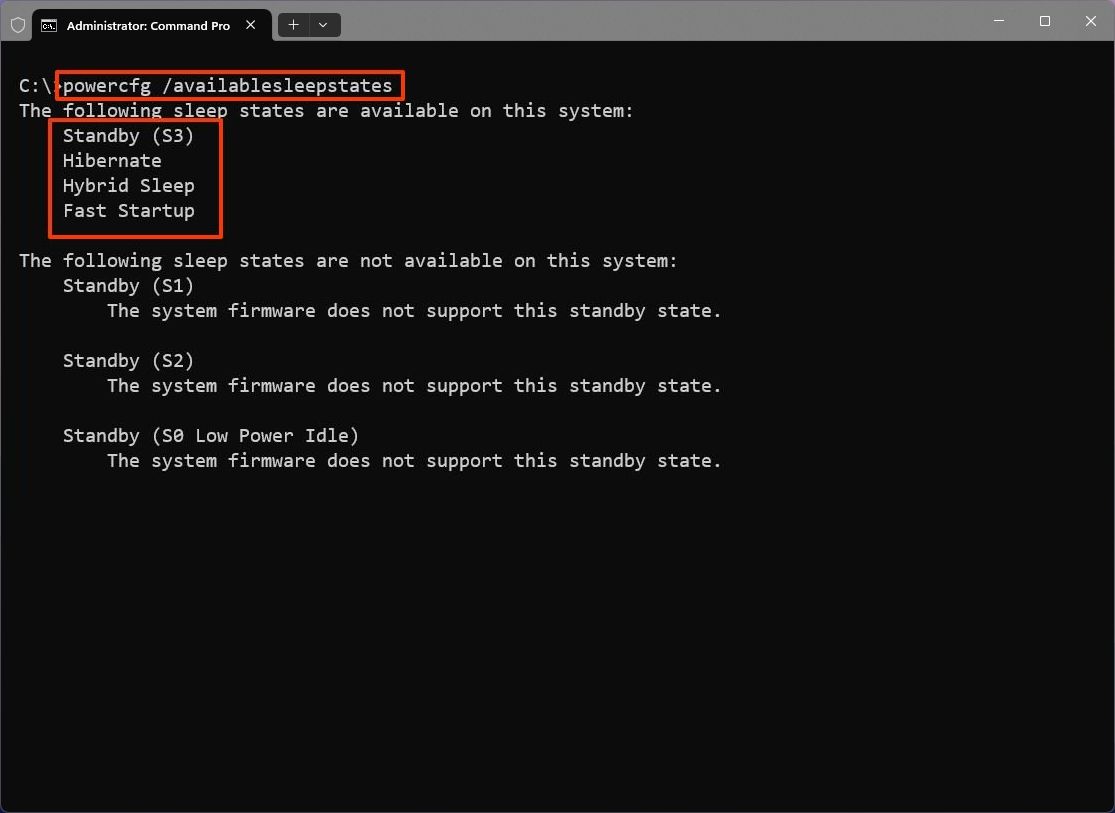
The first thing I check on a problematic Windows 11 laptop is the available sleep states.
Open Command Prompt as administrator and run:
powercfg /a
Look for a line such as:
Standby (S0 Low Power Idle)
If Windows reports S0 Low Power Idle, the machine is using Modern Standby rather than traditional S3 Sleep.
For an overnight battery-preservation test, use Hibernate instead of Sleep.
Open:
Control Panel > Hardware and Sound > Power Options
Select Choose what closing the lid does.
If Hibernate is not available, select Change settings that are currently unavailable and enable Hibernate if the option is provided by the system.
Set the lid-close action to Hibernate when running on battery.
You can also test Hibernate directly by opening Start > Power and selecting Hibernate.
The exact available options depend on the laptop’s firmware and Windows power configuration.
Verification: Hibernate the laptop at approximately 80–100% battery, leave it disconnected from AC overnight, and compare the next-morning percentage; a very small reduction confirms that ordinary Sleep/Modern Standby activity is responsible for most of the drain.
Technical Note: Modern Standby cannot always be converted to traditional S3 Sleep through a registry modification. On many current laptops, the supported sleep architecture is determined by firmware and platform design, so forcing undocumented sleep states can create resume, driver, or firmware problems.
Method 2: Use PowerCfg to Find What Is Keeping the Laptop Active
If you want to identify the actual source rather than simply switching to Hibernate, Windows provides several useful powercfg diagnostics.
Open Command Prompt as administrator.
First generate a sleep diagnostics report:
powercfg /sleepstudy
On supported Modern Standby systems, Windows creates a SleepStudy report showing activity during standby sessions.
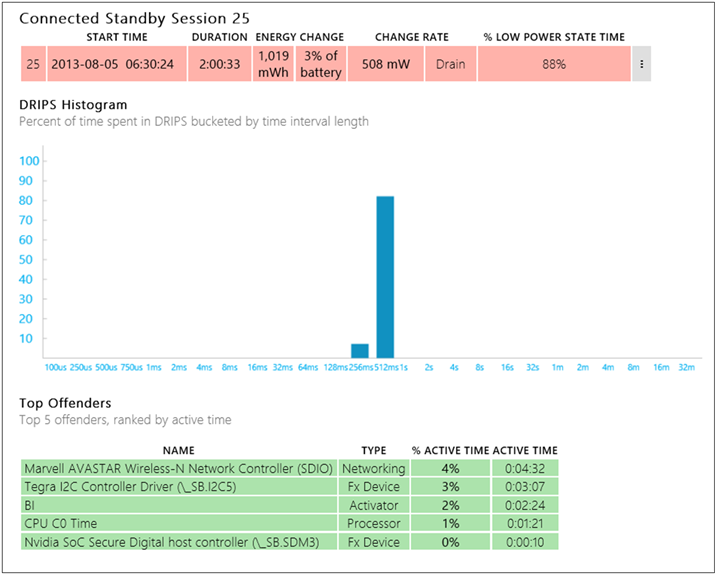
Look for sessions with unusually high battery drain. Pay attention to applications, drivers, network activity, and hardware components that remain active for significant periods.
Also run:
powercfg /requests
This command reports active power requests that can prevent certain low-power transitions.
If you see a driver or application repeatedly requesting execution, investigate that component rather than randomly changing power settings.
Next check wake timers:
powercfg /waketimers
If Windows reports an active wake timer, inspect the associated scheduled task in Task Scheduler.
Open:
Start > Task Scheduler
Navigate through Task Scheduler Library and inspect tasks whose conditions include Wake the computer to run this task.
Do not disable Windows maintenance tasks indiscriminately. First identify whether the task is actually associated with the overnight wake event.
You can also inspect the most recent wake source after the laptop resumes:
powercfg /lastwake
Verification: Put the laptop into Sleep, reproduce the overnight drain, then run powercfg /lastwake and review the SleepStudy report; a repeatable driver, device, application, or wake event appearing during the high-drain session identifies the component requiring further investigation.
Warning: Do not delete scheduled tasks simply because they appear in a power diagnostic report. Record the task name and disable only a clearly identified third-party or unnecessary task. Windows maintenance tasks may be required for normal system operation.
Method 3: Disable Network and USB Wake Sources
Network connectivity is a frequent source of unexpected activity, particularly on Modern Standby systems.
Open Device Manager by right-clicking Start and selecting Device Manager.
Expand:
Network adapters
Right-click the active Wi-Fi adapter and select Properties.
Check the Power Management tab if it exists. If Windows provides an option such as:
Allow this device to wake the computer
temporarily clear it for testing.
Some adapters expose additional wake-related controls under the Advanced tab. The available settings vary significantly by manufacturer, so do not change unrelated parameters.

Repeat the inspection for other devices that may wake the laptop, particularly:
- Ethernet adapters
- Bluetooth adapters
- USB controllers
- Docking stations
- External keyboards
- External mice
Disconnect USB peripherals and docking stations during the overnight test. A malfunctioning USB device can generate repeated activity that prevents the system from reaching a stable low-power condition.
If the laptop uses a USB-C dock, test Sleep with the dock completely disconnected. Some docks maintain network, USB, or display functions while the laptop is sleeping.
Verification: Disconnect the dock and unnecessary USB devices, prevent the Wi-Fi adapter from waking the computer where the option is available, then perform another overnight Sleep test; if battery consumption drops substantially, reconnect devices individually until the responsible wake source is identified.
Long-Term Prevention & Configuration Lock
1. Use Hibernate for long periods of inactivity.
If the laptop regularly sits unused overnight or for an entire weekend, Hibernate is usually a more predictable choice for battery preservation than relying on Modern Standby behavior.
2. Keep BIOS, chipset, and power-management drivers current.
Modern Standby behavior depends heavily on firmware and platform drivers. When updating BIOS or chipset packages, check the manufacturer’s release notes for power, standby, resume, or battery-related changes.
3. Periodically inspect power diagnostics after major updates.
After a major Windows update, run:
powercfg /a
and, where supported:
powercfg /sleepstudy
If the sleep architecture or standby behavior changes, investigate it before assuming the battery itself has failed.
Advanced Edge-Case FAQ
Why does my laptop lose 30–50% overnight even though Windows says it was sleeping?
On a Modern Standby system, the screen being off does not necessarily mean the entire computer is electrically inactive. Windows can enter low-power idle while selected components and software remain available for maintenance or connectivity. Run powercfg /sleepstudy after reproducing the problem and look for a standby session with unusually high energy consumption. If Hibernate produces almost no overnight loss, the battery is probably not the primary cause.
Why is my laptop warm in my backpack even though I closed the lid?
The machine may have entered standby but later resumed or remained active because of a driver, network adapter, USB device, scheduled task, or firmware issue. Heat is a particularly useful warning sign because a laptop that is genuinely in a deep low-power state should not normally generate sustained operating heat. Until the cause is identified, use Hibernate before putting the laptop into a confined bag.
Why does disabling Wi-Fi sometimes fix the battery drain, but not every time?
Wi-Fi can be involved in standby activity, but it is only one possible source. Modern laptops can also be affected by Bluetooth devices, USB-C docks, network adapters, drivers, firmware, and applications. If disabling Wi-Fi changes the result, use powercfg /sleepstudy and powercfg /lastwake to determine whether network activity is actually responsible. If the drain continues with Wi-Fi disabled, investigate other wake sources rather than leaving wireless networking permanently disabled.