
Technical Root Cause & Diagnostics
Bluetooth headphone delay during a video call is usually caused by the headset changing Bluetooth audio profiles rather than by the video application itself. Windows normally uses a high-quality stereo profile such as A2DP for music and video playback. When an application opens the headset’s microphone, Windows may switch the device into a hands-free communications profile. That profile has different bandwidth and processing characteristics and can introduce noticeably different latency and audio quality.
I diagnose this first by separating playback from microphone use. If YouTube or a locally stored video is synchronized correctly until a Teams, Zoom, Google Meet, or browser call starts, the Bluetooth radio is not necessarily failing. The more likely trigger is microphone activation, an audio enhancement layer, an outdated Bluetooth driver, or Windows selecting the hands-free endpoint. This distinction prevents unnecessary Bluetooth adapter replacement.
Typical symptoms include:
- Voices reaching the headphones noticeably after the speaker’s lips move.
- Video playback is synchronized normally until a microphone-enabled call begins.
- Bluetooth audio becomes muffled or changes from stereo to telephone-quality sound.
- Delay disappears when the Bluetooth headset microphone is disabled.
- The problem occurs only with one browser or conferencing application.
- Headphones work correctly through a 3.5 mm cable or USB connection.
- Bluetooth disconnect/reconnect temporarily restores synchronization.
- Windows shows separate Headphones and Headset or Hands-Free audio endpoints.
Pre-Flight Sanity Checks (Rule Out the Basics)
1. Confirm the delay is actually Bluetooth-related.
Play a 1080p YouTube video or a locally stored video before joining a call. Then repeat the same test through the laptop’s built-in speakers. If the speakers remain synchronized while the Bluetooth headphones lag, continue with the Bluetooth-specific fixes.
2. Disconnect competing Bluetooth devices.
Temporarily disconnect Bluetooth speakers, game controllers, keyboards, mice, and secondary headsets. I particularly check controllers because some Bluetooth adapters become less reliable when several devices are transmitting simultaneously.
3. Restart the Bluetooth radio without rebooting Windows.
Go to Settings > Bluetooth & devices, switch Bluetooth off, wait approximately 10 seconds, and turn it back on. Reconnect the headphones and test a call again. This clears a simple Bluetooth connection-state problem without changing drivers or configuration.
Method 1: Stop Windows From Using the Headphones’ Hands-Free Microphone
The fastest fix is to prevent the conferencing application from opening the Bluetooth headset’s low-bandwidth microphone profile. Use the computer’s built-in microphone or a separate USB microphone while keeping the Bluetooth headphones as the output device.
Open Settings > System > Sound.
Under Input, select your laptop’s internal microphone or another dedicated microphone.
Under Output, select the Bluetooth headphones.
Next, open your conferencing application’s audio settings. In Microsoft Teams, Zoom, Google Meet, or a similar application, set:
- Speaker/Output: Bluetooth headphones
- Microphone/Input: Laptop microphone or USB microphone
Do not select the Bluetooth headset’s Hands-Free microphone if a separate input device is available.

For a stronger test, temporarily disable the Bluetooth headset’s communications endpoint. Press Win + R, enter:
mmsys.cpl
and press Enter.
Open the Recording tab. Locate the Bluetooth headset’s hands-free microphone, right-click it, and select Disable. Then open the Playback tab and make sure the normal stereo headphones endpoint remains enabled.
Verification: Join a video call with the Bluetooth headphones selected for output and the computer/USB microphone selected for input; if the delayed audio disappears and voice playback becomes synchronized, the hands-free profile was the trigger.
Technical Note: Disabling the hands-free microphone means the headset’s built-in microphone will no longer be available to applications. This is intentional for diagnosis. If the delay returns whenever the headset microphone is selected, the evidence strongly points to Bluetooth profile switching rather than a display or video-rendering problem.
Method 2: Reset Windows Bluetooth Audio Configuration and Driver State
If changing the microphone endpoint does not resolve the problem, rebuild the Bluetooth device connection and inspect the active Windows driver.
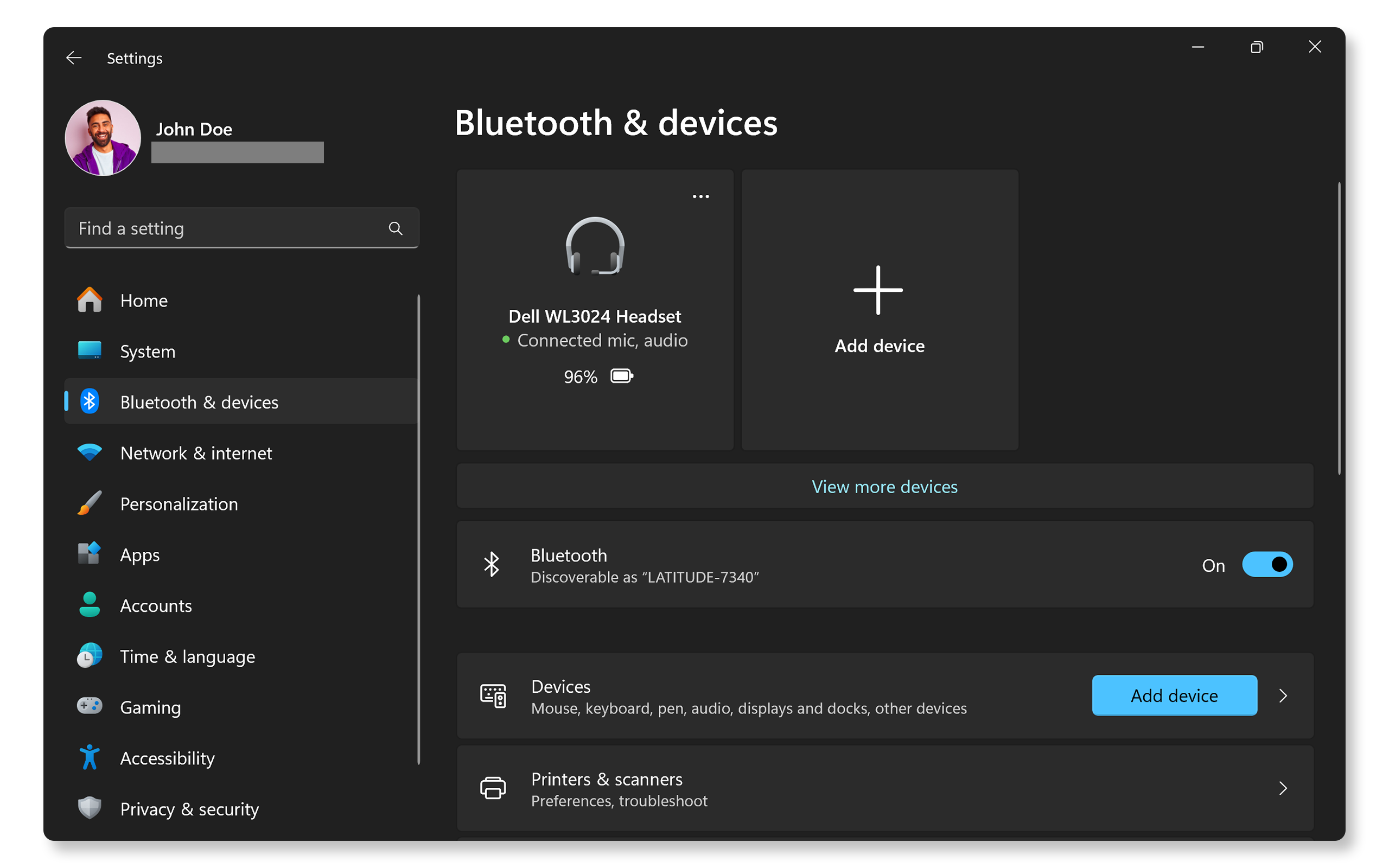
Open Settings > Bluetooth & devices > Devices.
Find the affected headphones, select the … menu, choose Remove device, and confirm.
Turn the headphones off. Restart Windows, then return to:
Settings > Bluetooth & devices
Select Add device > Bluetooth, put the headphones into pairing mode, and pair them again.
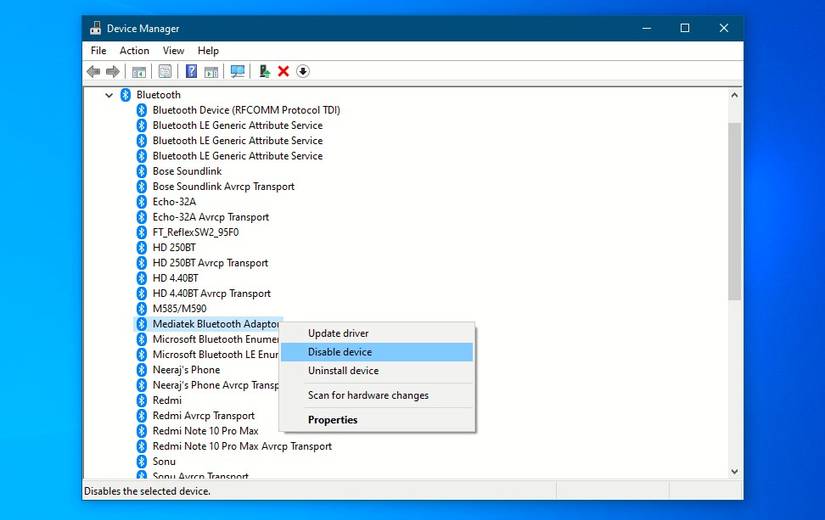
Next, inspect the Bluetooth adapter. Right-click Start and open Device Manager.
Expand Bluetooth. Identify the actual Bluetooth adapter, such as an Intel, MediaTek, Qualcomm, or Realtek Bluetooth device.
Right-click it and select:
Properties > Driver
Record the Driver Provider, Driver Date, and Driver Version before making changes.
If Windows recently installed a driver and the latency began afterward, check whether Roll Back Driver is available. If it is, use it and restart Windows.
If rollback is unavailable, install the current Bluetooth driver supplied by the computer or motherboard manufacturer rather than randomly installing a generic driver package.
You can also check the Bluetooth adapter’s power-management configuration. In Device Manager, right-click the adapter and select Properties > Power Management. If Windows provides Allow the computer to turn off this device to save power, temporarily clear that option for testing.
Verification: After restarting Windows, pair the headphones again and perform a complete video call with the same application, microphone, and headphones; the fix is successful if the previous delay does not return during microphone activation.
Warning: Do not delete or modify Bluetooth driver files manually. Before replacing a driver, record the existing version and create a Windows restore point. If a manufacturer driver causes a new problem, restoring the previous configuration is considerably easier when the original version is documented.
Method 3: Disable Audio Enhancements and Test the Bluetooth Codec Path
Windows audio processing can add another processing stage between the application and Bluetooth output. I test this after eliminating the headset microphone profile because changing enhancement settings will not correct an incorrectly selected Bluetooth profile.
Open:
Settings > System > Sound > Output
Select the Bluetooth headphones.
Look for Audio enhancements and set them to Off.
If Windows displays Spatial sound, set it to Off temporarily.
Also check the device’s advanced properties. Depending on the driver, Windows may expose additional processing options through:
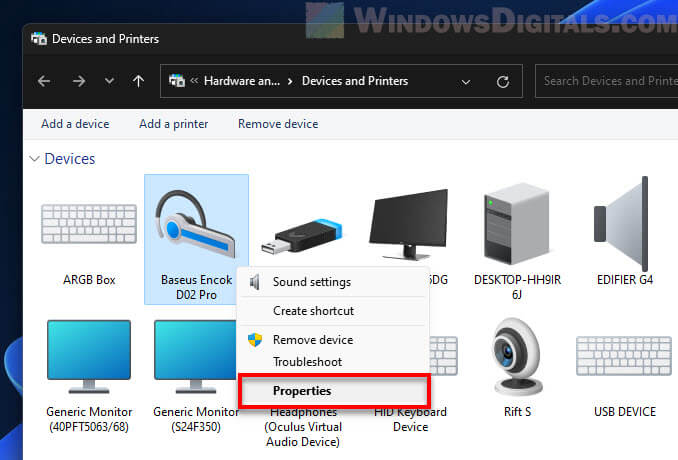
Settings > System > Sound > More sound settings > Playback > Bluetooth headphones > Properties
Check the Enhancements and Advanced tabs if they are available. Disable optional effects for the test.
On the Advanced tab, you may also see a Default Format selector. Do not blindly choose the highest setting. Test the default format first, then compare another available stereo format if the driver exposes one.
If the problem occurs only in Chrome, also test the same meeting in another browser. For Chrome-specific troubleshooting, enter:
chrome://settings/system
Temporarily disable Use graphics acceleration when available, restart Chrome, and repeat the call.
This is not a universal Bluetooth fix, but it helps isolate cases where browser audio processing and hardware acceleration interact poorly with the system’s audio pipeline.
Verification: Repeat the same video call after each individual change; if lip-sync improves only after disabling an enhancement or browser hardware acceleration, re-enable the other settings one at a time to identify the specific processing layer responsible.
Long-Term Prevention & Configuration Lock
1. Keep the microphone and Bluetooth output intentionally separated.
If the headset repeatedly switches into hands-free mode during meetings, configure Windows and your conferencing applications to use the laptop or USB microphone as input. This preserves the Bluetooth stereo playback path.
2. Update Bluetooth drivers from the computer manufacturer.
Windows Update can provide functional drivers, but laptop manufacturers sometimes publish newer Bluetooth packages containing device-specific fixes. Record the working driver version before upgrading so you can identify whether a later update changes behavior.
3. Avoid unnecessary audio-processing layers.
Once you have confirmed that Bluetooth stereo playback works correctly, leave unnecessary spatial audio, virtual surround, third-party audio effects, and microphone-processing utilities disabled. Every additional processing layer creates another possible source of latency or compatibility problems.
Advanced Edge-Case FAQ
Why does my Bluetooth headset work perfectly for YouTube but lag immediately after I join a Teams or Zoom meeting?
This pattern strongly suggests a profile transition. Normal media playback can use the Bluetooth stereo path, while opening the headset microphone causes Windows to select the communications endpoint. Test the meeting using the laptop’s built-in microphone while keeping the Bluetooth headphones as output. If synchronization immediately improves, the microphone profile is the first component to investigate.
Why does the delay remain even after I disable the Bluetooth headset microphone?
If the headset is no longer using its hands-free endpoint, examine the Bluetooth adapter driver, Windows audio enhancements, and the conferencing application’s audio configuration. I would also test the same headset on another computer. If it works correctly elsewhere, the problem is more likely related to the original Windows Bluetooth driver, audio stack, or application configuration than the headphones themselves.
Why does my Bluetooth headset have low-quality sound and noticeable delay only during calls?
Low-quality audio during a call is a useful diagnostic clue. Windows may have switched from the stereo playback endpoint to a hands-free communications endpoint because the application requested microphone access. Instead of trying to compensate for the latency with video settings, select a separate microphone and keep the Bluetooth headphones as the output device. If stereo quality and synchronization return, the Bluetooth hands-free mode was responsible.