
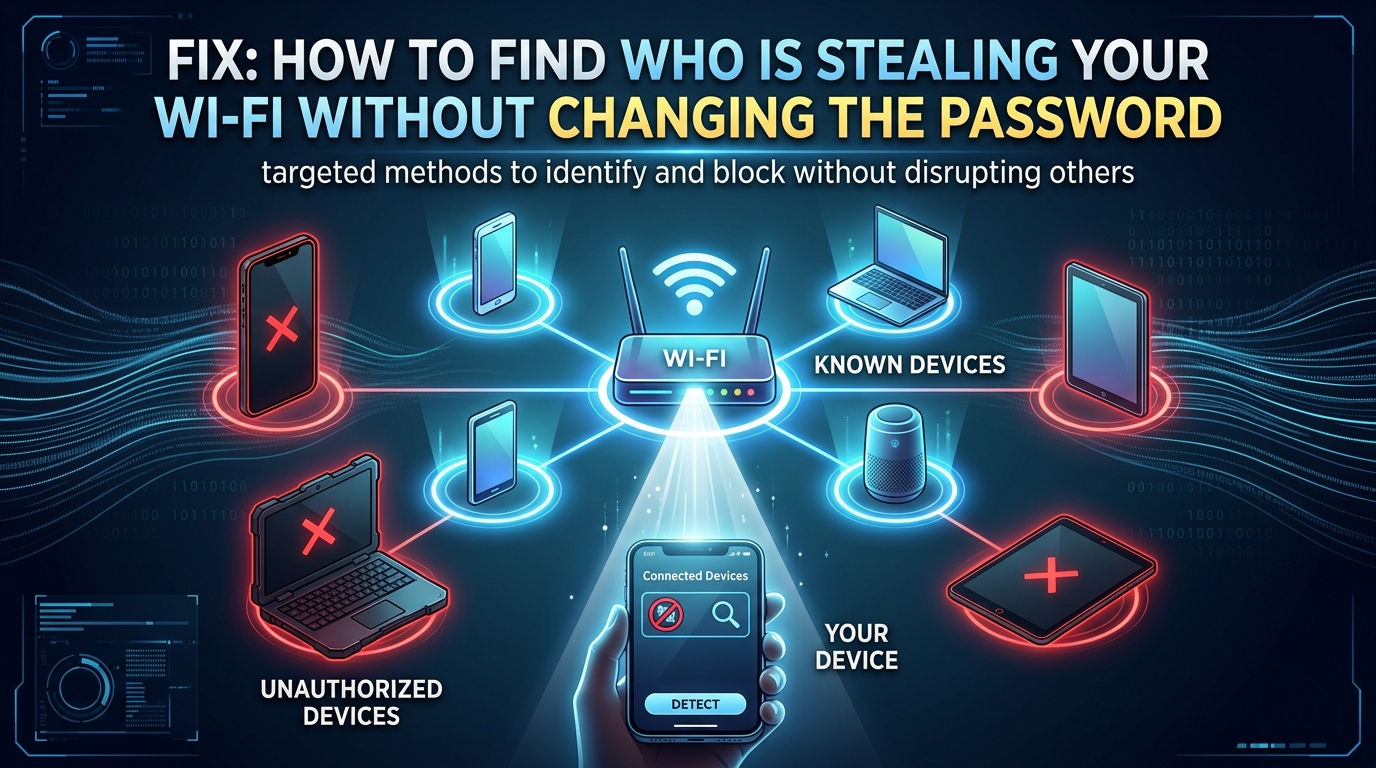
Technical Root Cause & Diagnostics
You do not need to change your Wi-Fi password just to find out whether an unknown device is using your network. The quickest method is to open the router’s connected-device/client list, compare the devices shown there with the phones, computers, TVs, cameras, printers, and smart-home equipment you actually own, and then identify unfamiliar entries by their MAC address and manufacturer information.
One unfamiliar device name does not automatically mean someone is stealing your Wi-Fi. Phones may use randomized MAC addresses, some devices appear with generic names, and routers sometimes retain disconnected clients in a recent-device list. The goal is therefore to identify and verify the device before blocking anything.
Possible warning signs include:
- A device you do not recognize appears as connected.
- The router shows more active clients than expected.
- An unfamiliar device repeatedly reconnects.
- Internet performance becomes poor when the unknown device is active.
- The same unknown MAC address appears across multiple days.
- Your router shows a device name such as
Android,Unknown, or a generic manufacturer name.
Pre-Flight Sanity Checks (Rule Out the Basics)
1. Make a list of everything currently using your Wi-Fi
Count your own equipment first.
Include:
- Phones
- Laptops
- Desktop PCs
- Tablets
- Smart TVs
- Streaming boxes
- Printers
- Security cameras
- Smart speakers
- Game consoles
- Smart plugs
- Wi-Fi thermostats
- Older devices that may still be powered on
Do not forget devices belonging to family members or guests.
2. Check whether your router displays inactive devices
Routers commonly have separate lists such as:
- Connected Devices
- Online Devices
- Client List
- DHCP Clients
- Wireless Clients
- Network Map
- Attached Devices
Only the currently connected/online section should be used initially.
3. Do not immediately block an unfamiliar device
First record its:
Device name
IPv4 address
MAC address
Connection type
Wi-Fi band
Manufacturer
This information makes identification much easier.
Method 1: Use the Router’s Connected-Device List
Log in to your router’s administration interface.
The address is commonly something like:
192.168.1.1or:
192.168.0.1If you do not know the address, Windows can show it.
Open Command Prompt:
ipconfigLook for Default Gateway under the active Wi-Fi adapter.
After logging into the router, find Connected Devices, Client List, Attached Devices, or a similarly named section.
You may see something like:
John-Laptop      192.168.1.105
LivingRoom-TV    192.168.1.110
Galaxy-Phone     192.168.1.115
Unknown          192.168.1.121
Printer          192.168.1.125
Do not assume Unknown means an intruder.
Some routers cannot determine the device’s hostname, and privacy features can make identification less obvious.
Write down the unknown device’s MAC address.
For example:
AA:BB:CC:11:22:33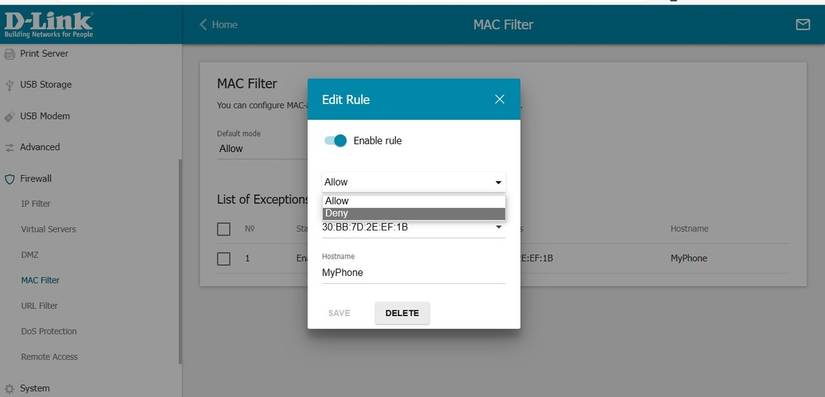
Now compare the MAC address against your own devices.
Verification: Confirm that every currently connected device is either one you own, a known household device, or a device belonging to someone you intentionally allowed onto the network.
Technical Note: Router client lists are more useful than simply counting Wi-Fi signal bars. A device can be connected for only a short period and may disappear from the active list after disconnecting.
Method 2: Identify the Unknown Device Using Its MAC Address
If the router gives you an unfamiliar MAC address but no useful device name, identify the device directly.
On the Windows laptop you are using for testing, open Command Prompt:
arp -aWindows will display recently learned local network devices.
You may see:
Interface: 192.168.1.105

Internet Address      Physical Address
192.168.1.1           10-aa-bb-cc-dd-ee
192.168.1.121         aa-bb-cc-11-22-33
The Physical Address is the MAC address.
Compare it with the unknown entry from your router.
You can also look at the first three hexadecimal pairs, known as the OUI, which can sometimes indicate the manufacturer.
For example:
AA:BB:CCmay identify a vendor, although manufacturer information is not proof of who owns the device.
Modern devices can also use randomized MAC addresses. A phone may therefore not have the same Wi-Fi MAC address you expect from its hardware label.
If you suspect the unknown device belongs to someone in your household, temporarily turn that person’s Wi-Fi off and refresh the router’s client list.
For example:
- Record the unknown MAC address.
- Turn Wi-Fi off on the suspected phone.
- Wait for the router’s client list to update.
- Check whether that MAC address disappears.
- Turn Wi-Fi back on and check whether it returns.
This is a much better test than guessing from a device name.
Verification: Confirm that the unknown router entry matches a specific device by comparing its MAC address or by temporarily disconnecting suspected devices and observing which client disappears.
Technical Note: MAC addresses are identifiers for network interfaces, not people’s identities. A manufacturer match can tell you that a device may be a phone, laptop, or networking product, but it cannot tell you exactly who is using it.
Method 3: Watch the Router While You Disconnect Your Own Devices
When several devices have generic names, perform an isolation test.
Start with the router’s current client list.
Then disconnect your own Wi-Fi devices one at a time.
For example:
1. Turn off Wi-Fi on Phone A
2. Refresh router client list
3. Record which entry disappears
4. Turn Phone A back on
5. Repeat with Phone B
For stationary equipment, unplug the device temporarily if necessary.
This works particularly well for devices that appear as:
Unknown
Android
iPhone
ESP_xxxxxx
Device
You can also turn off Wi-Fi on all of your known devices and then check whether the router still shows an active wireless client.
Do not unplug the router itself during this test.
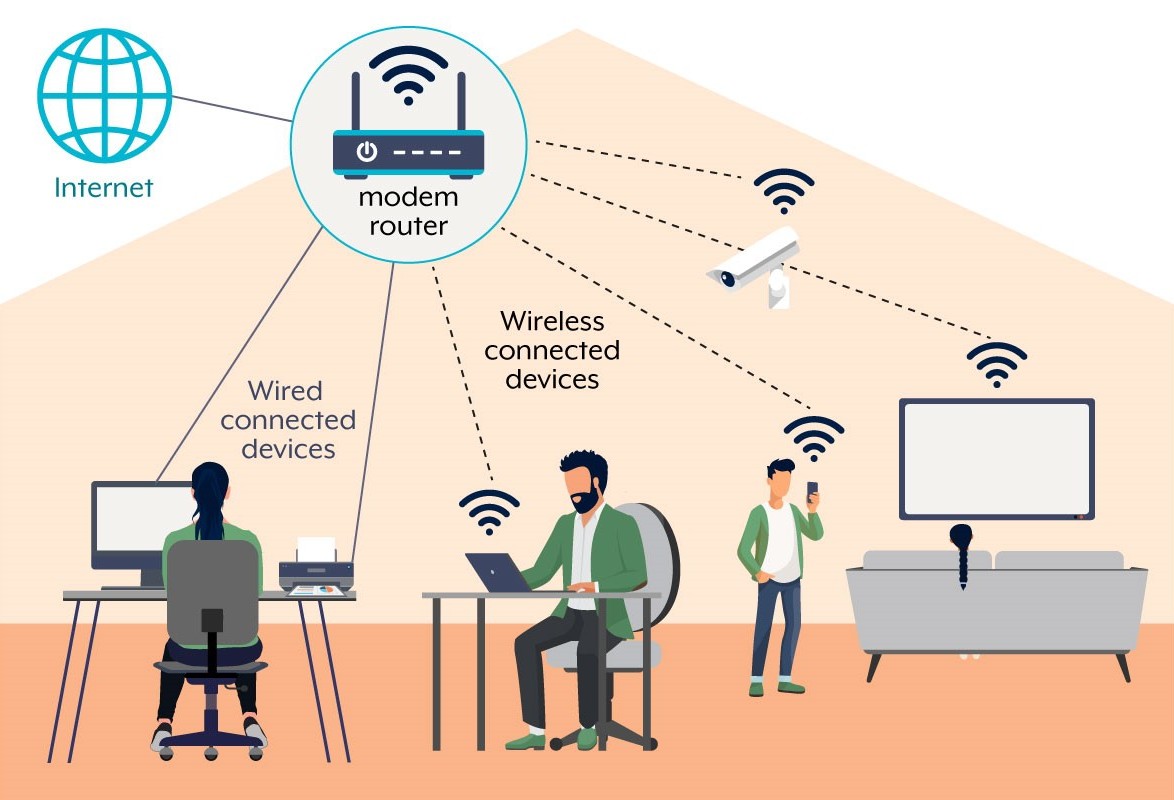
If one device remains connected, record its MAC address and IP address.
You can then reconnect your equipment one by one and watch which entries return.
This creates a simple mapping:
AA:BB:CC:11:22:33 → Living-room TV
AA:BB:CC:44:55:66 → Android phone
AA:BB:CC:77:88:99 → Unknown device
If the unknown entry remains after your known Wi-Fi devices have been disconnected, it deserves further investigation.
Verification: After disconnecting every known Wi-Fi device, confirm whether the suspected client remains in the router’s active wireless-client list and whether its MAC address consistently reappears when the device reconnects.
Warning: Do not use a factory reset as an identification method. A router reset removes your configuration and can create a much larger problem without telling you who was connected.
Long-Term Prevention & Configuration Lock
1. Keep a device inventory.
Record important devices by name and MAC address. This makes future router checks much easier, especially when you have many smart-home devices.
2. Check the router’s client list periodically.
You do not need to inspect it every day. Checking after adding a new device or when internet performance suddenly changes can help you spot unexpected connections.
3. Separate guest devices from your main network.
If your router provides a guest Wi-Fi network, use it for visitors and devices that do not need access to your private LAN. This also makes the main client list easier to understand.
Advanced Edge-Case FAQ
1. Why does my phone appear as an unknown device even though I know it is mine?
Modern phones can use private/randomized Wi-Fi MAC addresses. The router may therefore see an address that does not match the physical MAC address printed elsewhere on the phone.
Check the Wi-Fi network’s details on the phone and look for its Private Wi-Fi Address, Randomized MAC, or similarly named setting. Compare that address with the router’s client entry.
This is one of the most common reasons a legitimate household device appears unfamiliar.
2. Can I find the exact person who is using an unknown Wi-Fi device?
Not from the MAC address alone. A router can usually tell you that a particular network client is connected and may provide its IP address, hostname, MAC address, and connection time, but those details do not establish a person’s identity.
The safest approach is to identify the physical device first. If it cannot be matched to anything in your household, you can then use the router’s security controls to block or disconnect it.
3. Why does an unknown device disappear before I can identify it?
The device may have disconnected, entered sleep mode, switched between Wi-Fi bands, or used a randomized MAC address. Some routers also remove inactive clients quickly from the active list while retaining them elsewhere under Recent Devices or DHCP Clients.
If this happens repeatedly, monitor the router’s client list while the problem is occurring and record the MAC address as soon as the device appears. If your router provides connection logs, those can also help establish whether the same client is repeatedly reconnecting.