
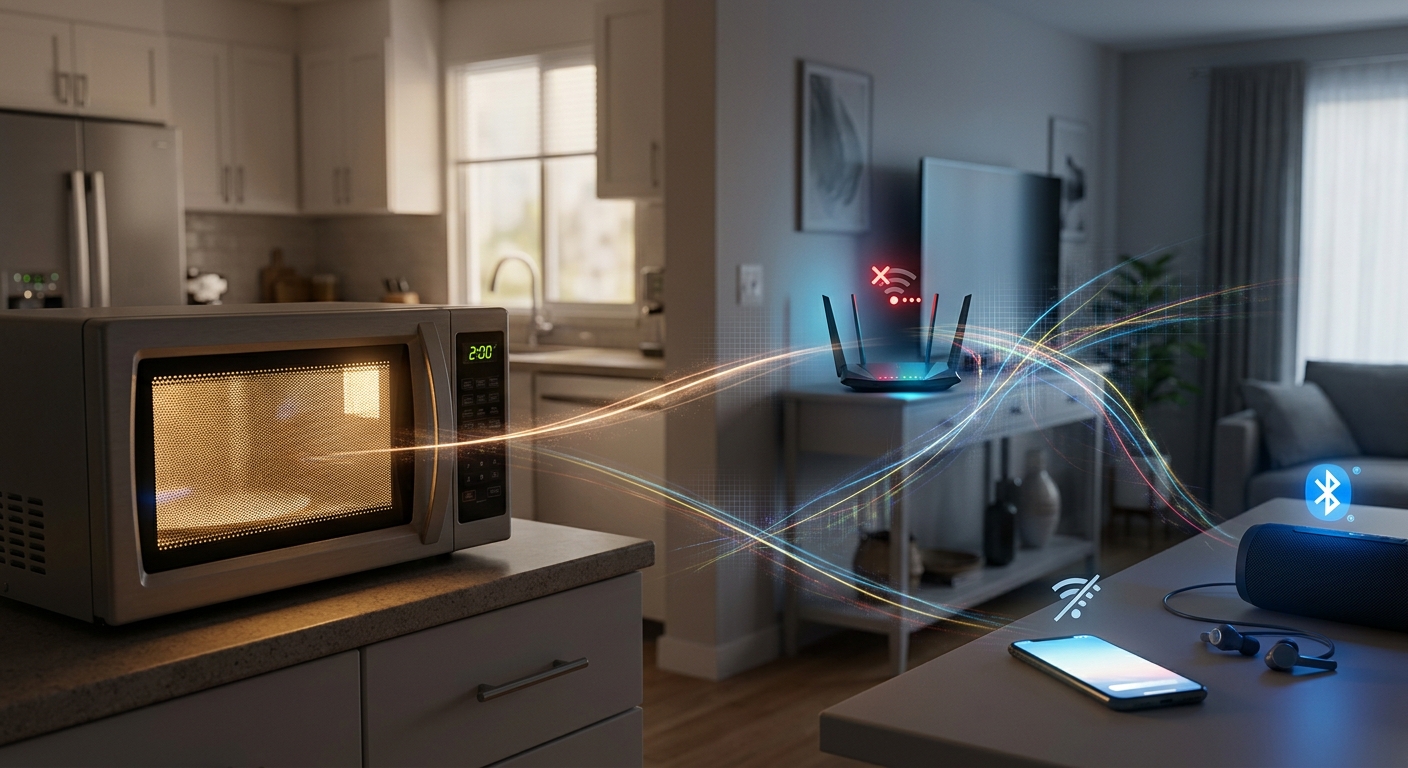
Target environment: 2.4 GHz Wi-Fi on a Windows laptop, phone, or home router
Wi-Fi can disconnect when a microwave or Bluetooth device becomes active because 2.4 GHz Wi-Fi shares spectrum with other radio-frequency devices, and interference can reduce the signal-to-noise ratio enough for the connection to drop. A microwave does not normally “turn off” Wi-Fi directly; leakage from its operating frequency can interfere with nearby 2.4 GHz communications, while Bluetooth devices can create shorter bursts of interference in the same band.
The first thing I check is whether the problem disappears when the device moves from 2.4 GHz Wi-Fi to 5 GHz or 6 GHz. If it does, that is strong evidence that the problem is radio interference rather than an ISP outage or a defective internet connection.
Technical Root Cause & Diagnostics
The 2.4 GHz Wi-Fi band overlaps the frequency range used by many household devices. Microwave ovens operate around 2.45 GHz, which is close to the 2.4 GHz Wi-Fi band. A properly shielded microwave should contain most of its RF energy, but a nearby oven can still raise the local noise floor enough to disrupt a marginal wireless connection.
Bluetooth also operates in the 2.4 GHz ISM band. Bluetooth uses frequency-hopping techniques and generally has much lower transmission power than a microwave, so a single Bluetooth device usually should not destroy a strong Wi-Fi connection. Problems become more likely when the Wi-Fi signal is already weak, the access point is congested, or several 2.4 GHz devices are operating simultaneously.
Common symptoms include:
- Wi-Fi disconnects when the microwave starts.
- The connection becomes extremely slow during microwave operation.
- Bluetooth headphones cause temporary Wi-Fi instability.
- Wi-Fi works normally when the Bluetooth device is turned off.
- 5 GHz Wi-Fi works while 2.4 GHz repeatedly disconnects.
- The router remains online, but one laptop or phone loses connection.
- Ping times suddenly increase when a nearby device starts transmitting.
- Wi-Fi reconnects automatically after the interfering device stops.
Pre-Flight Sanity Checks (Rule Out the Basics)
1. Determine which Wi-Fi band you are using
On Windows 11, open:
Settings → Network & internet → Wi-Fi → [Connected network]
Look at the connection details.
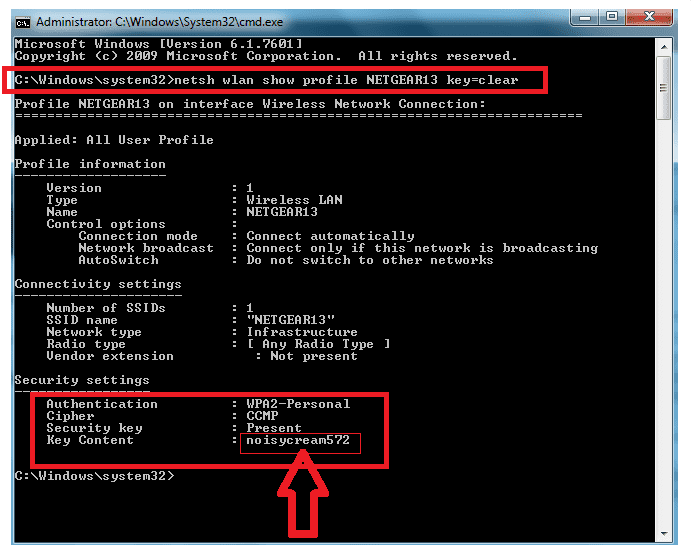
You can also open Command Prompt and run:
netsh wlan show interfaces
Look for information such as the Radio type, Channel, and Signal.
2. Test Wi-Fi away from the microwave
Move the laptop or phone several meters away from the microwave and repeat the same test.
If the connection becomes stable, physical proximity is an important clue.
3. Test another Wi-Fi band
If your router provides separate 2.4 GHz and 5 GHz networks, connect to the 5 GHz network.
If available, also test 6 GHz.
Verification: If the connection remains stable on 5 GHz or 6 GHz while 2.4 GHz fails during microwave or Bluetooth activity, investigate 2.4 GHz interference before replacing the router or contacting your ISP.
Method 1: Move the Device to 5 GHz or 6 GHz Wi-Fi
The simplest solution is to stop using the congested 2.4 GHz band for devices that support newer Wi-Fi bands.
Open your router’s Wi-Fi settings and check whether it supports:
- 2.4 GHz
- 5 GHz
- 6 GHz
If the router uses one combined network name, your device may automatically select a band based on signal strength, compatibility, and the router’s steering behavior.
For troubleshooting, create separate network names temporarily if your router supports this.
For example:
HomeWiFi-2.4G
HomeWiFi-5G
Connect the affected laptop or phone directly to:
HomeWiFi-5G
Then operate the microwave or Bluetooth device and observe the connection.
5 GHz generally provides more usable spectrum and is not affected by microwave operation in the same way as 2.4 GHz. The trade-off is shorter range and greater attenuation through walls.
6 GHz can provide even more clean spectrum on compatible Wi-Fi 6E/7 equipment, but both the router and client device must support it.
Verification: The affected device should remain connected to 5 GHz or 6 GHz while the microwave or Bluetooth device is operating.
Technical Note: Do not use 5 GHz solely because its signal-strength number looks lower. A weaker 5 GHz connection can still provide better real-world performance if the 2.4 GHz band is heavily interfered with.
Method 2: Change the 2.4 GHz Channel and Channel Width
If you must use 2.4 GHz, optimize the radio configuration.
Log in to your router’s administration interface.
Open the wireless settings for:
2.4 GHz Wi-Fi
Look for:
- Channel
- Channel width
- Wireless mode
For 2.4 GHz, test the non-overlapping channels commonly used in your regulatory domain, typically:
1, 6, or 11
Do not assume that the router’s automatic channel selection is always optimal at the exact location where you experience the problem.
For channel width, 20 MHz is usually the safer troubleshooting choice in a congested 2.4 GHz environment.
A wider channel consumes more spectrum and can increase overlap with neighboring networks and other 2.4 GHz devices.
After changing the channel, save the router configuration and reconnect the affected device.
Test the same microwave or Bluetooth scenario again.
If the router provides a wireless analyzer or channel-utilization display, use it to identify congestion before choosing a channel.
Verification: The affected device should maintain a more stable 2.4 GHz connection during the interference test after selecting a cleaner channel and 20 MHz channel width.
Technical Note: Channel 1, 6, and 11 are not guaranteed to be interference-free. They are simply the standard non-overlapping 20 MHz choices in many 2.4 GHz deployments; local RF conditions determine which performs best.
Method 3: Improve Physical Placement and Check the Wi-Fi Adapter
If changing the channel does not solve the problem, reduce the physical impact of the interference.
Do not place the router:
- Directly beside the microwave
- Behind the microwave
- Inside a metal cabinet
- Immediately next to a large appliance
- Near a crowded bundle of wireless electronics
Move the router to an elevated, open location.
Also check the affected laptop’s wireless adapter.
Open:
Device Manager → Network adapters
Find the Wi-Fi adapter and select:
Properties → Driver
Record the driver provider and version.
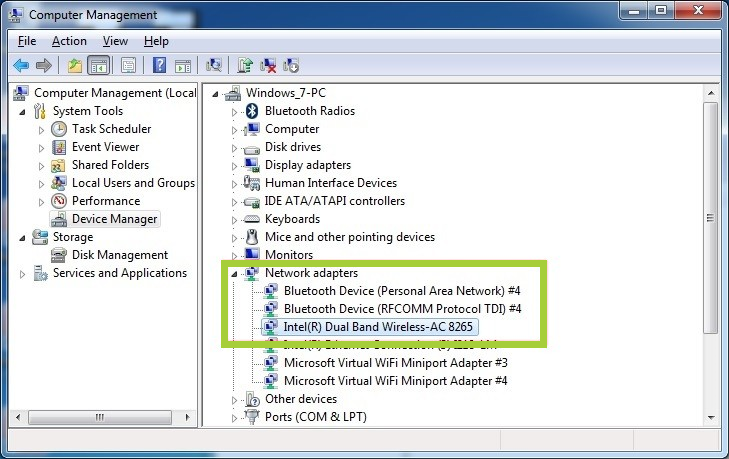
Install the appropriate Wi-Fi driver from the laptop manufacturer when an updated version is available.
For troubleshooting, you can also inspect:
Properties → Power Management
If Allow the computer to turn off this device to save power is enabled, test whether disabling it changes the behavior.
Do not assume that this setting is responsible for RF interference; it is simply a useful way to eliminate a separate power-management problem that can look like a wireless disconnect.
If possible, test another laptop or phone from the same location.
If every device loses 2.4 GHz connectivity at the same moment, the router/environment is more likely responsible than one computer’s Wi-Fi adapter.
Verification: Multiple devices should remain connected more reliably after improving router placement and eliminating client-side driver or power-management problems.
Warning: Do not replace the Wi-Fi adapter based on a single disconnect. First compare multiple client devices and compare 2.4 GHz with 5 GHz/6 GHz to determine whether the problem follows the radio band.
Long-Term Prevention & Configuration Lock
1. Reserve 2.4 GHz for devices that actually need it
Older smart-home equipment may require 2.4 GHz, but modern laptops, phones, and streaming devices often work better on 5 GHz or 6 GHz.
Move high-bandwidth devices away from 2.4 GHz whenever practical.
2. Keep the router away from major appliances
Maintain physical separation between the wireless router and the microwave.
Do not hide the router inside a cabinet simply to improve appearance. Metal and dense materials can reduce wireless performance.
3. Keep 2.4 GHz at 20 MHz when the environment is crowded
A wider channel is not automatically faster.
In a busy 2.4 GHz environment, 20 MHz can provide a cleaner and more predictable connection than using a wider channel that overlaps additional spectrum.
Advanced Edge-Case FAQ
Why does my Wi-Fi disconnect when the microwave is turned on but not when it is off?
A microwave operates around 2.45 GHz, which is close to the 2.4 GHz Wi-Fi band.
If the router or client is already receiving a weak or noisy 2.4 GHz signal, additional RF energy from a nearby microwave can reduce the signal-to-noise ratio enough for packets to be corrupted or the connection to temporarily fail.
The strongest diagnostic is to repeat the test on 5 GHz or 6 GHz. If that connection remains stable, the problem is much more likely to involve 2.4 GHz interference than your internet service.
Can Bluetooth headphones really disconnect Wi-Fi?
They can contribute to 2.4 GHz congestion, but a normal Bluetooth headset should not routinely disconnect a strong, well-configured Wi-Fi connection.
Bluetooth uses frequency hopping and relatively low transmit power. If headphones consistently trigger Wi-Fi failures, look for a combination of factors: weak Wi-Fi signal, crowded 2.4 GHz channels, an older wireless adapter, poor driver behavior, or multiple simultaneous 2.4 GHz devices.
Testing the same headphones while the computer is connected to 5 GHz is a useful way to isolate the problem.
Why does changing the Wi-Fi channel help with Bluetooth or microwave interference?
Changing the 2.4 GHz Wi-Fi channel can reduce overlap with other nearby wireless networks and some sources of RF interference.
However, changing from channel 1 to 6, for example, does not magically make Wi-Fi immune to a microwave operating near 2.45 GHz. If the microwave is physically very close to the router or client, improving placement and moving compatible devices to 5 GHz/6 GHz can have a much larger effect.