
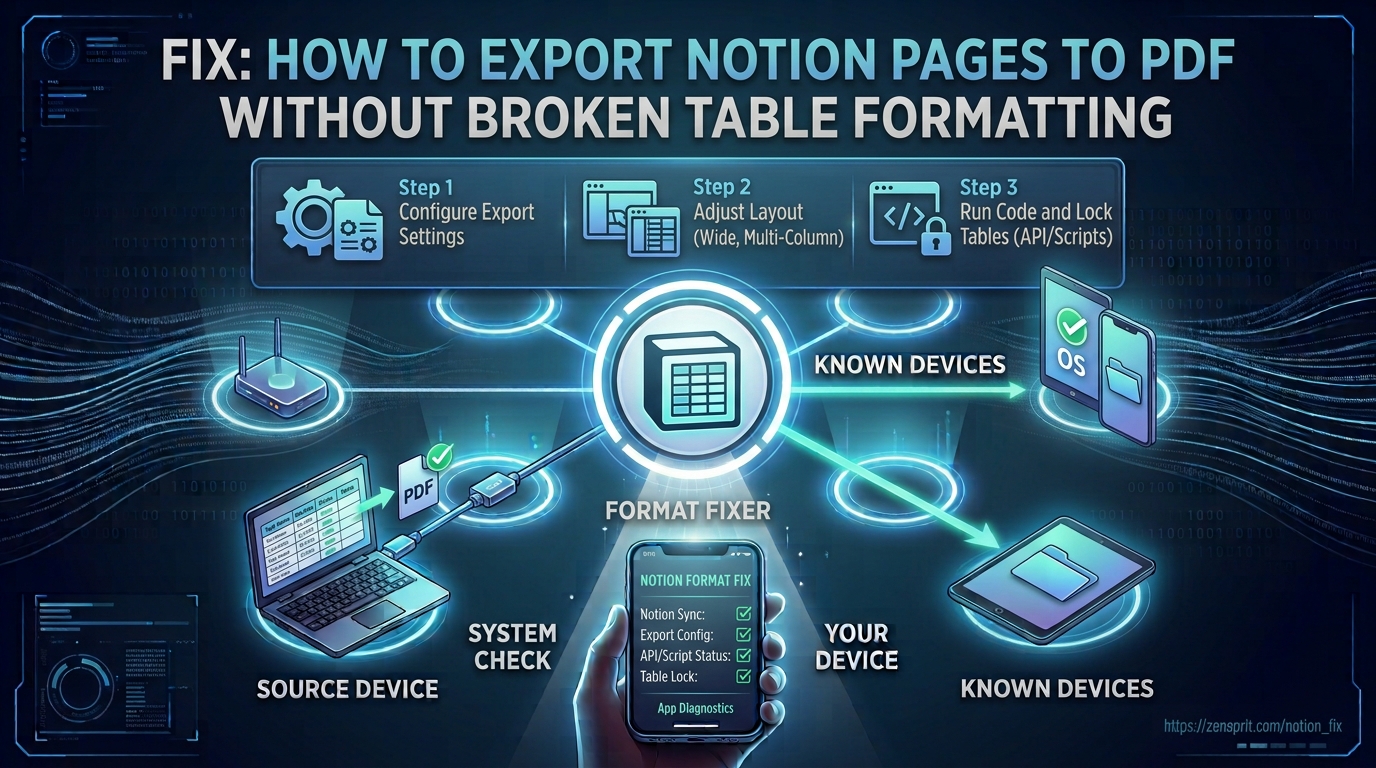
Target environment: Notion on desktop or web, exporting pages as PDF
Notion tables can become difficult to read after PDF export because the page is converted into a fixed-size document, while Notion’s editor is designed around a flexible web layout. Wide databases, long cell content, narrow columns, grouped views, and page-width settings can cause columns to wrap, split, or become compressed in the exported PDF.
The most reliable approach is to prepare the Notion page for a fixed PDF page size before exporting it. I first reduce unnecessary column width and content wrapping, then export a controlled test page rather than repeatedly exporting the full document and trying to repair the PDF afterward.
Technical Root Cause & Diagnostics
Notion pages are responsive inside the editor, but a PDF has fixed physical dimensions. A table that looks perfectly readable across a wide desktop monitor may not fit comfortably on an A4 or Letter PDF page. When the available printable width becomes smaller, Notion has to reflow the table.
Database tables are particularly sensitive because each property becomes a column. A database containing ten or more visible properties can quickly exceed the usable width of a normal portrait page.
Common symptoms include:
- Table columns become extremely narrow.
- Long text wraps across many lines.
- Table rows become unusually tall.
- A column appears cut off in the PDF.
- A table continues onto another page in an awkward position.
- The PDF is readable on screen but difficult to print.
- Checkbox, date, or select columns consume unnecessary space.
- A wide database looks fine in Notion but poor in the exported document.
- Landscape export produces a better table but still leaves excessive wrapping.
Pre-Flight Sanity Checks (Rule Out the Basics)
1. Reduce the number of visible database properties
Open the database and identify columns that are not necessary in the PDF.
For example, if your table contains:
- Name
- Status
- Owner
- Date
- Priority
- Notes
- Category
- Created time
- Last edited time
you may not need every property in the exported document.
Hide unnecessary properties from the database view before exporting.
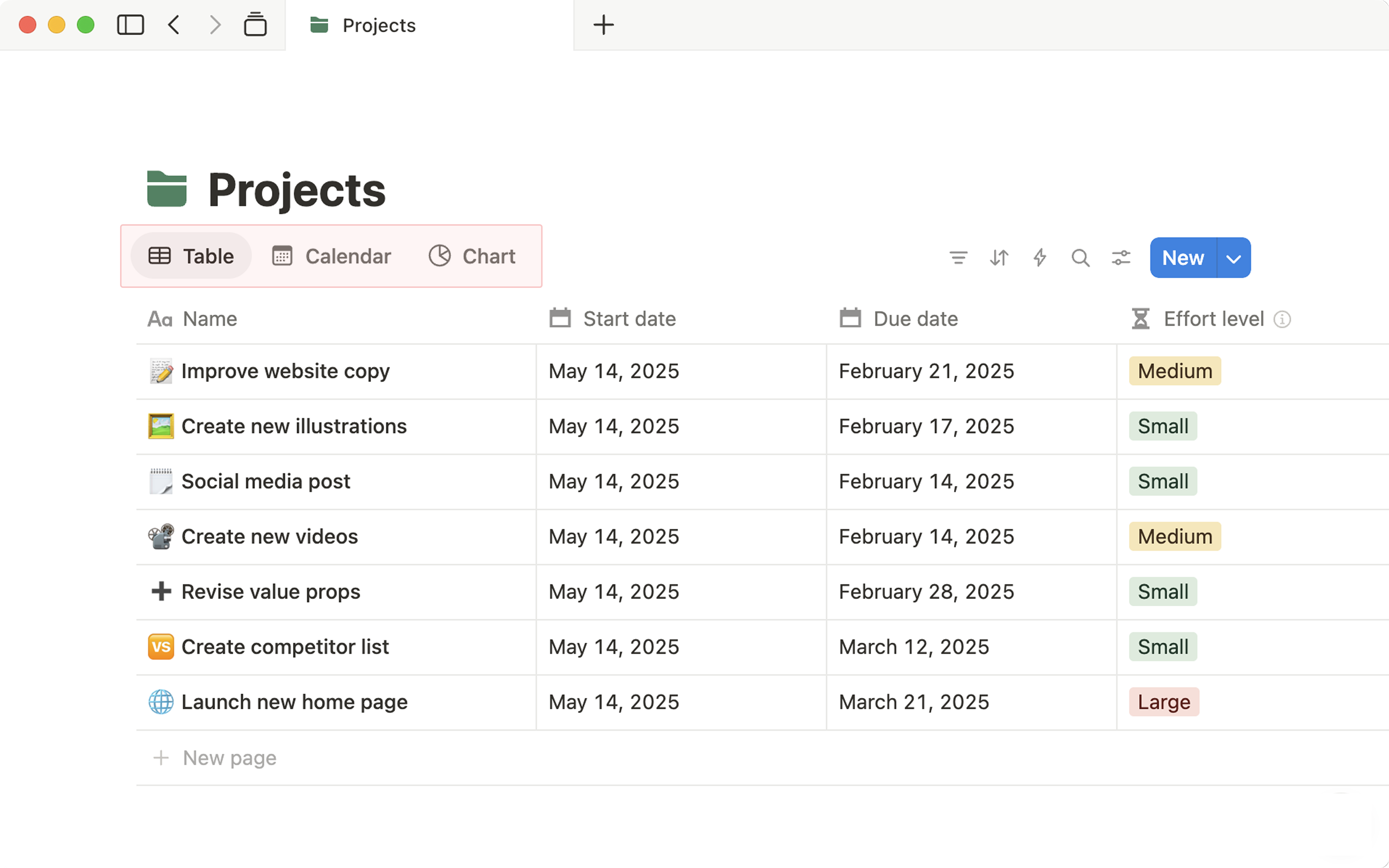
2. Check the page width
Open the Notion page and select the ••• menu in the upper-right corner.
If available for the page, enable:
Full width
This gives the table more horizontal working space while you prepare the page.
3. Preview a small export first
Do not immediately export a 50-page workspace.
Duplicate the page or create a small test section containing the problematic table. Export that page to PDF and inspect the result.
Verification: The test PDF should show the complete table with readable column headings and no unexpectedly clipped content before you export the full page.
Method 1: Simplify and Resize the Table Before Exporting
The easiest fix is to make the table fit the PDF rather than expecting the PDF exporter to preserve the exact appearance of a wide Notion workspace.
Open the database in Notion.
Review each visible property and ask whether it needs to appear in the PDF.
Hide properties that do not contribute to the exported document.
For example, technical metadata such as:
- Created time
- Last edited time
- Internal IDs
- Unused formulas
- Temporary status fields
can often be removed from the export view.
Then adjust the remaining columns.
Give narrow properties such as:
Status, Priority, Date, Checkbox
only the width they need.
Give text-heavy properties such as:
Description, Notes, Comments
more space.
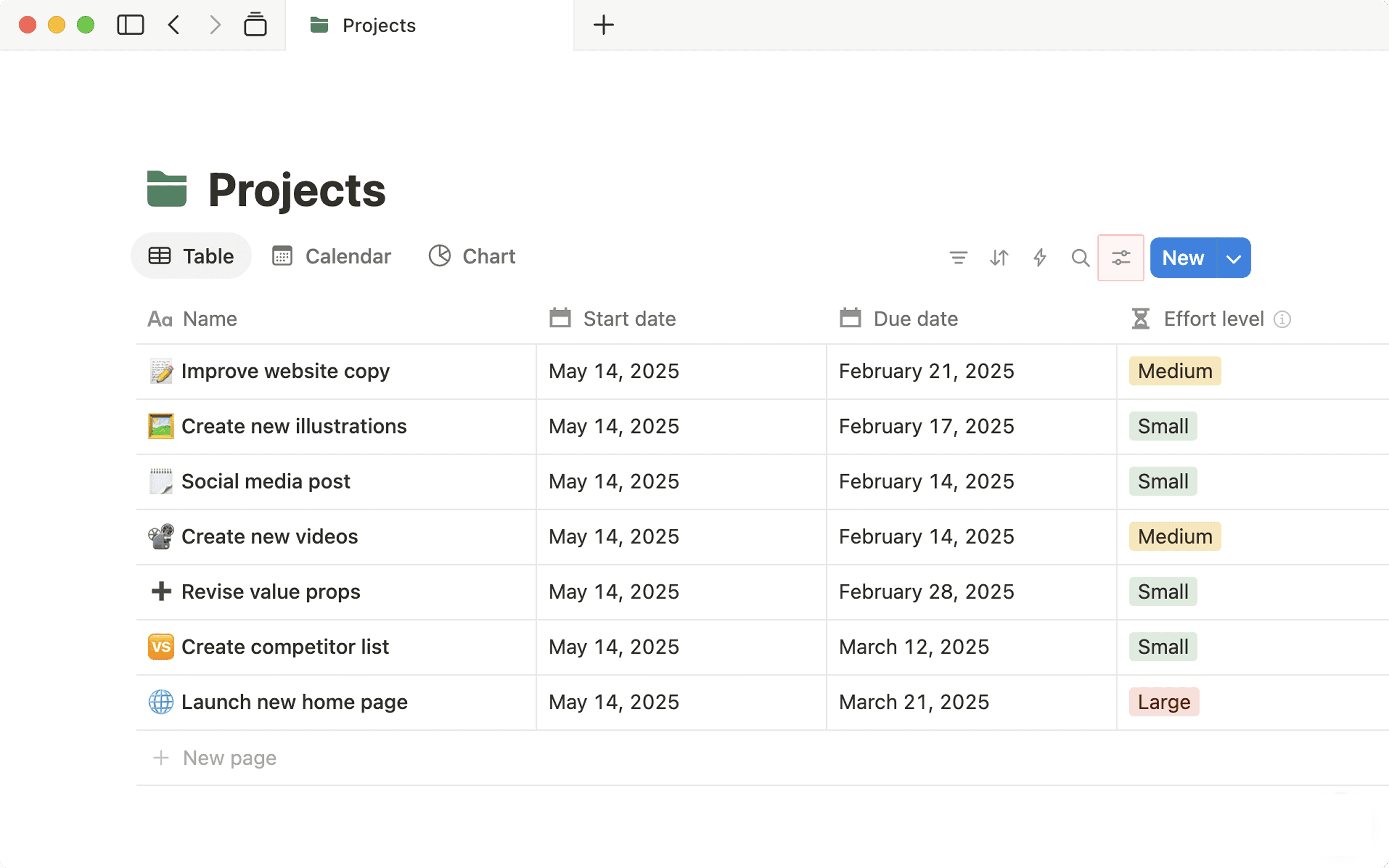
Avoid putting very long paragraphs into narrow table cells. If a cell contains several sentences, consider moving that information into the page body and keeping the table as a summary.
For example, instead of:
| Task | Notes |
|---|---|
| Backup | Check the computer, external drive, cloud status, encryption settings, and available storage… |
use a shorter table entry such as:
| Task | Status |
|---|---|
| Backup configuration | Complete |
Then place the detailed explanation below the table.
Verification: Export the adjusted page and confirm that the table remains readable without excessively tall rows or compressed columns.
Technical Note: A database table is often better treated as a structured summary in a PDF rather than as a complete replacement for the detailed Notion database.
Method 2: Change the Export Page Layout and Scale
If the table is still too wide, change the PDF export settings rather than continuing to squeeze columns.
Open the Notion page and select:
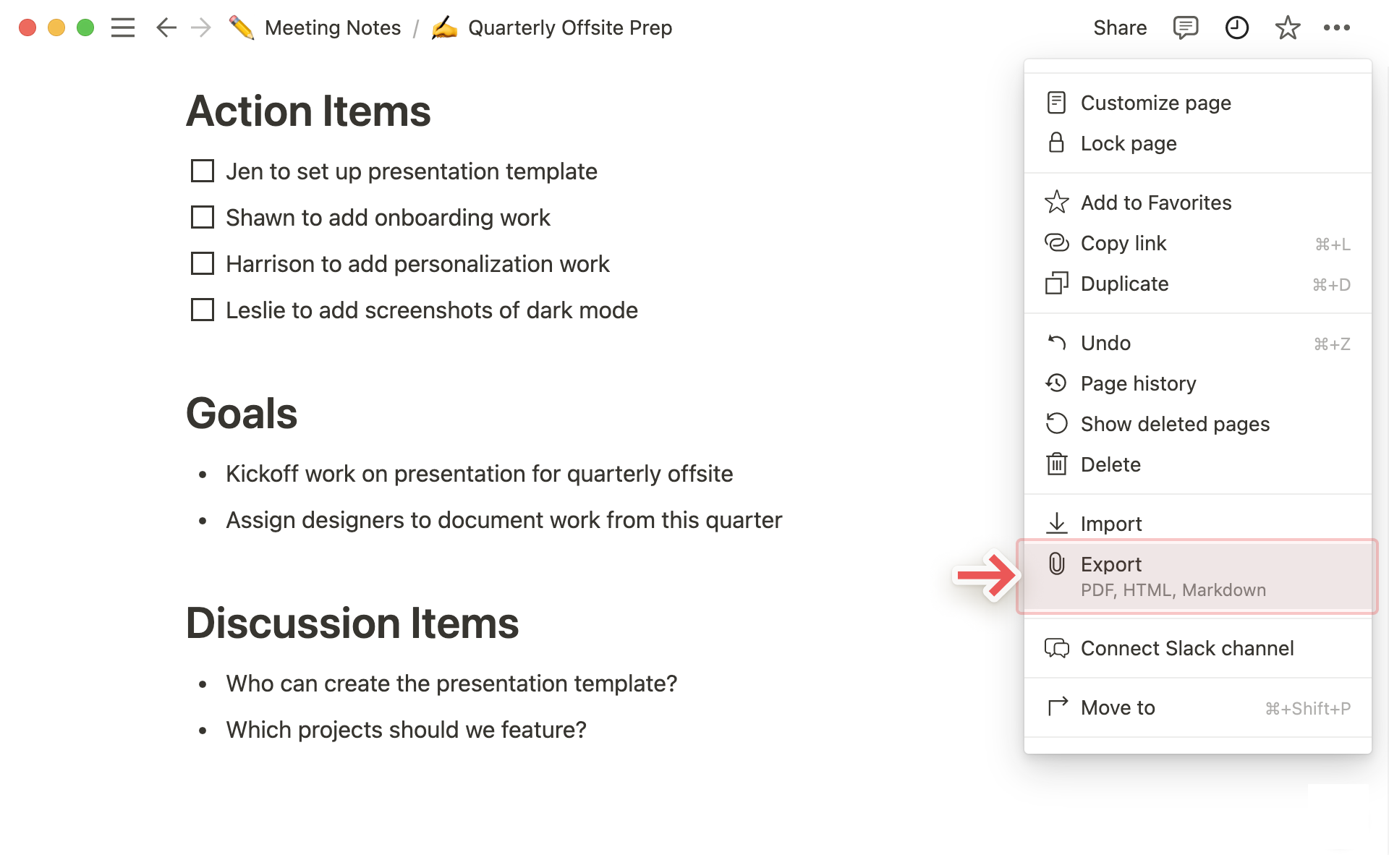
••• → Export
Choose:
The available export controls can vary depending on the Notion version and account configuration.
Look for options related to:
- Page format
- Scale
- Include subpages
- Page orientation
- Export appearance
For a wide table, landscape orientation can provide substantially more horizontal space than portrait orientation.
A useful test sequence is:
- Export in portrait.
- Inspect the table.
- Export in landscape.
- Compare the column wrapping.
- Keep the layout that provides the best readability.
Do not automatically choose the smallest scale available simply to force everything onto one page. A table that technically fits but requires the reader to zoom heavily is usually worse than a table spread across additional pages.
If your version of Notion provides a scaling control, use the largest practical scale that keeps the table within the page boundaries.
Verification: The exported landscape or adjusted-scale PDF should display the table without clipped columns while keeping the text large enough to read comfortably.
Warning: Export options can vary as Notion changes its PDF export implementation. If a particular orientation or scale option is unavailable in your current Notion interface, do not rely on an old menu path from another version.
Method 3: Split a Wide Database Into Smaller Export Views
If a database contains too many properties to fit cleanly on one PDF page, do not keep shrinking the entire table.
Create separate database views for different purposes.
For example:
Project Summary
- Task
- Status
- Owner
- Due date
Project Details
- Task
- Description
- Notes
- Dependencies
The same underlying database can support different views while showing different properties.
Create a focused view specifically for PDF export.
This is particularly useful when a database contains both operational fields and reader-facing information.
You can also split a very large table into logical sections using headings and separate linked database views.
For example:
Open Tasks
[Linked database view]
Completed Tasks
[Linked database view]
Pending Review
[Linked database view]
Each view can expose only the properties necessary for that section.
This produces a much more predictable PDF layout than forcing one enormous database onto every page.
Verification: Export the page and confirm that each table fits its section without excessively narrow columns or unreadable wrapping.
Technical Note: Splitting views changes the presentation, not the underlying database. You can continue managing the original database while maintaining a cleaner PDF-specific representation.
Long-Term Prevention & Configuration Lock
1. Create a dedicated PDF export view
If you regularly export the same database, create a view specifically for documents.
Keep only the properties that readers actually need.
This prevents you from redesigning the table every time you export.
2. Keep long-form explanations outside database cells
Large paragraphs inside table cells are difficult to print and export cleanly.
Use the table for structured information and place detailed explanations in normal Notion page blocks underneath it.
3. Test after major Notion layout changes
A database that exports correctly today can produce a different result after you add several properties or change the page structure.
Perform a quick PDF export whenever you substantially change the database layout.
Advanced Edge-Case FAQ
Why does my Notion table look perfect on screen but break when exported to PDF?
The Notion editor can use substantially more horizontal space than a fixed PDF page.
Your monitor may display a database across a wide browser window, while the PDF must fit the table into a defined printable page width. Notion therefore has to reflow columns and wrap content.
Reducing visible properties and using landscape orientation are usually more effective than simply reducing the font size.
Why does my table become several pages long after PDF export?
Long cell contents can cause rows to become much taller when the available column width is reduced.
A single paragraph that occupies one line on a wide screen may become five or ten lines in the PDF. Multiply that across dozens of rows and the table can expand dramatically.
Shorten the information displayed in the table, move detailed text outside the database, or create separate export views.
Can I force every Notion table to fit on one PDF page?
Not reliably, and forcing it is usually not the best solution.
A wide table containing many properties may simply contain more information than a normal PDF page can display comfortably. Shrinking it until everything technically fits can make the resulting document difficult to read.
For professional-looking exports, prioritize readability over fitting every column onto one page. Use landscape orientation, remove unnecessary properties, and split complex databases into focused views when necessary.